PDF to Text reads the text layer that is stored inside a PDF. It does not do OCR. A scanned PDF holds a picture of each page, so there is nothing to read and the tool shows Almost no text was found instead of your words.
Recognize an image-only scan
Open the PDF in a viewer and try to select one word with the mouse. If you can only drag a box over the whole page, it is probably an image.
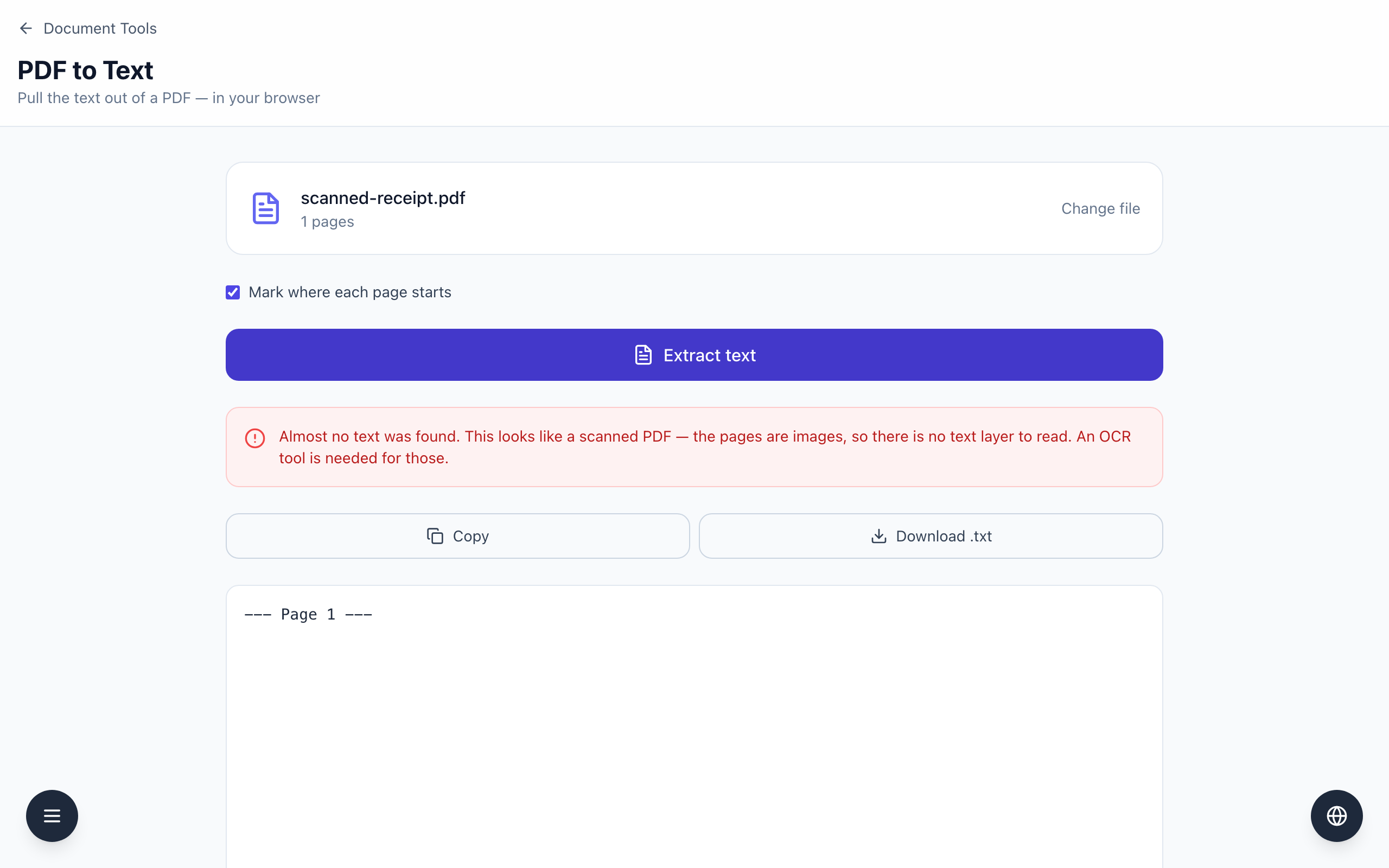
Open PDF to Text and drop in the file. The example is a generated one-page receipt that contains only a picture of text, scanned-receipt.pdf. The card shows 1 pages.
Click Extract text.
Read what appears. In the test a red note said Almost no text was found. This looks like a scanned PDF — the pages are images, so there is no text layer to read. An OCR tool is needed for those. The output box held only --- Page 1 ---, and the visible words on the page (an invoice total and date) were not in it.
What to do next
You need a separate OCR step, which turns the letters you see into real text. This tool does not provide one, so choose an OCR tool you trust for that document, especially if it contains private information. After OCR, run the new PDF through PDF to Text, or copy from the OCR tool directly.
OCR is a recognition guess. Handwriting, low-resolution scans, tilted pages and unusual fonts cause mistakes, so compare names, dates and amounts with the page image.
If it doesn't work
The tool shows the note when fewer than about 20 characters remain after the page markers are removed, so a page with only a short caption may also trigger it.
If only some pages are scans, text from the others still appears, and the note may not show. Look for pages whose marker has nothing under it.
If you see This file could not be opened as a PDF., the file is damaged or protected; try another copy.
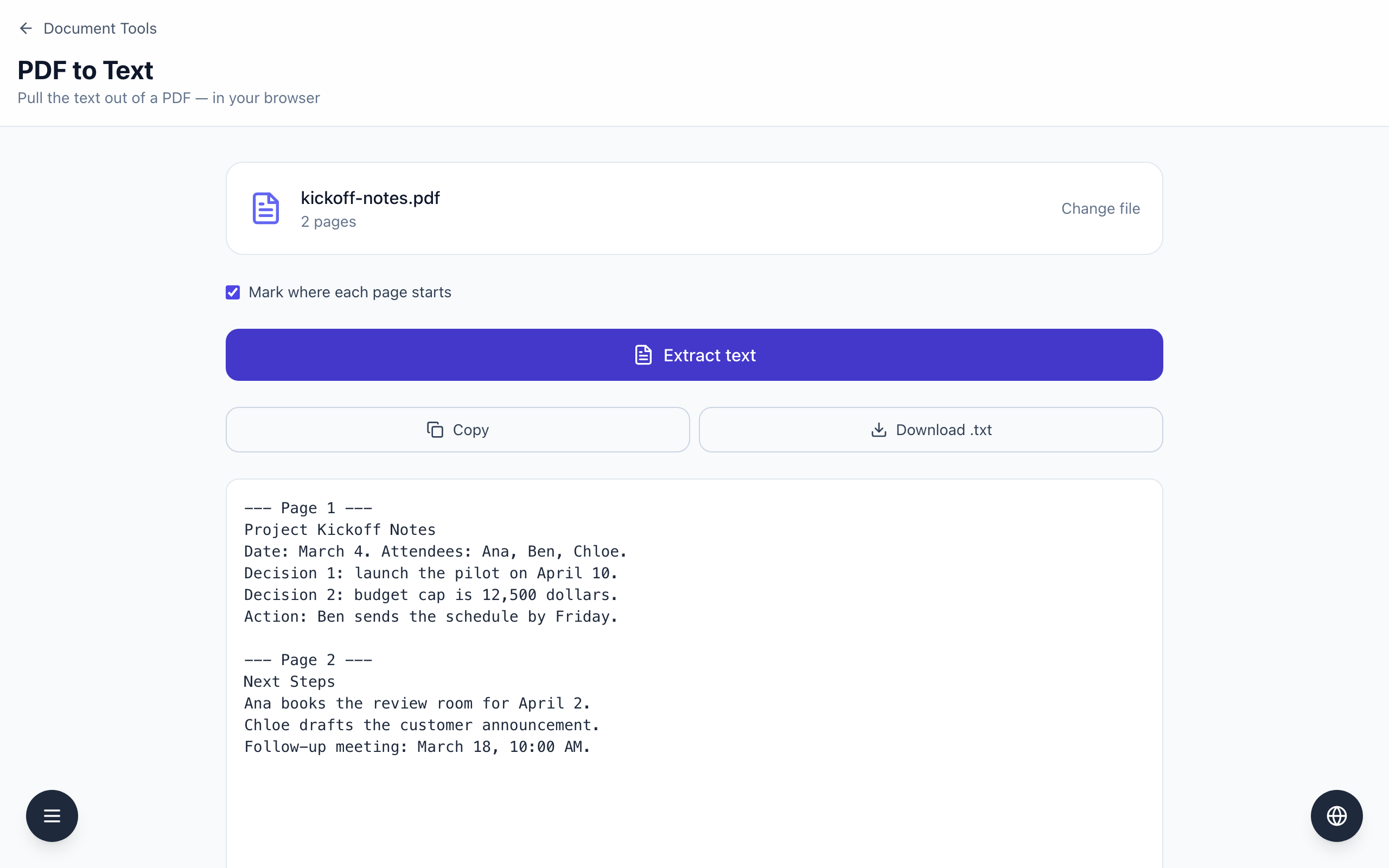
A scan that already went through OCR has a text layer and extracts normally, though recognition mistakes remain.