PDF Page Ranges: Printed Numbers vs File Page Positions
November 22, 20263 min read
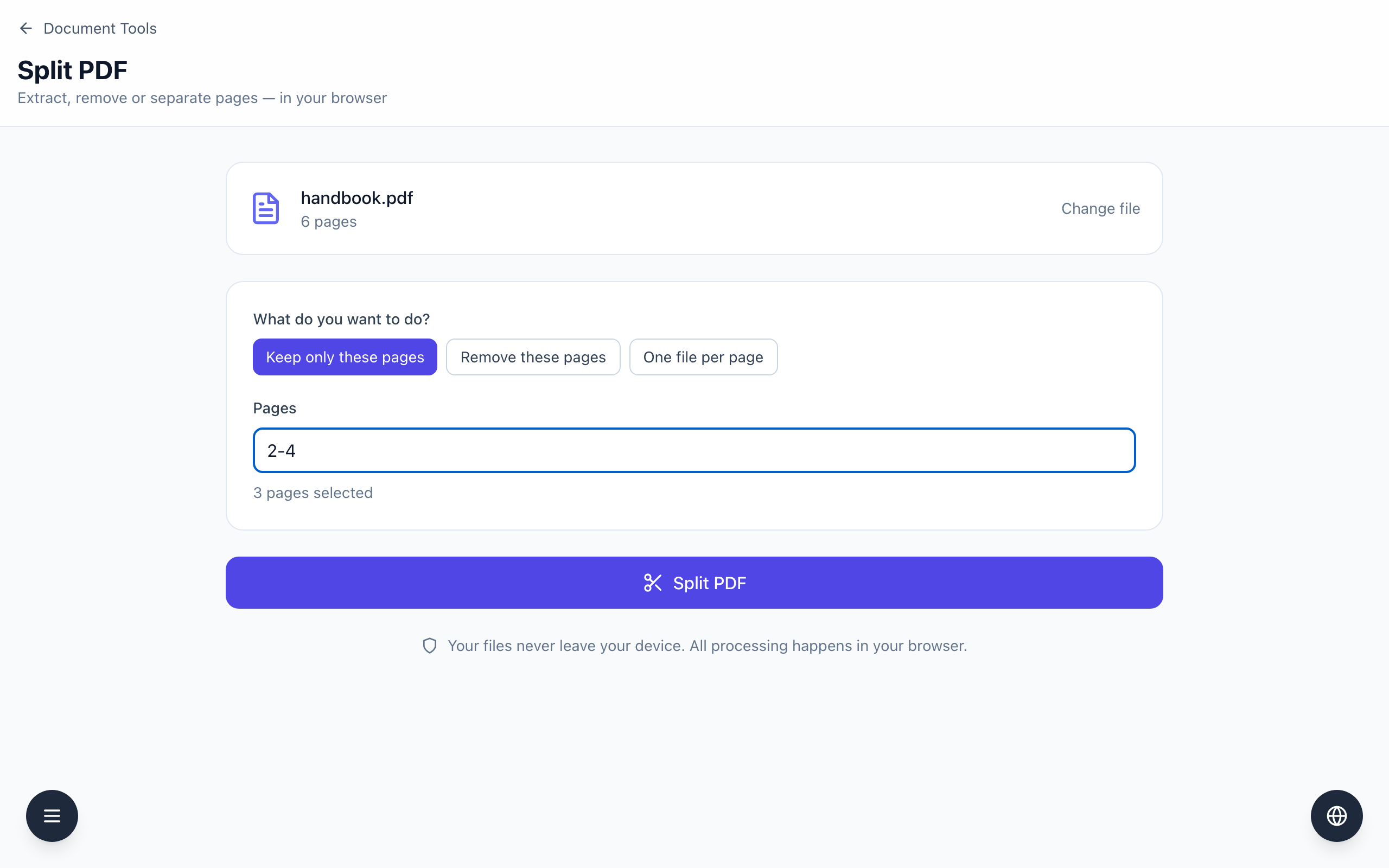
Split PDF uses the position of a page in the file: the first page is 1, even if it is a cover with no number. If printed page 1 is the second page of the file, then printed pages 1 to 3 are file pages 2-4.
Convert printed numbers to file positions
Open the PDF in a viewer and find the page you want. Note two numbers: the printed number in the footer and the position the viewer shows. The example is a generated 6-page handbook.pdf: the cover is file page 1 and has no footer; the next page is file page 2 and prints Printed page 1.
Subtract the shift. Here the shift is 1, so printed pages 1 to 3 sit at file pages 2 to 4.
Open Split PDF, drop in the file and keep Keep only these pages selected.
Type 2-4 in Pages. Below it you should see 3 pages selected.
Click Split PDF. The file handbook-extracted.pdf downloads. Open it: in the test it had 3 pages, Handbook content 1, 2 and 3, with footers Printed page 1 to 3 and no cover.
What happens if you type the printed numbers
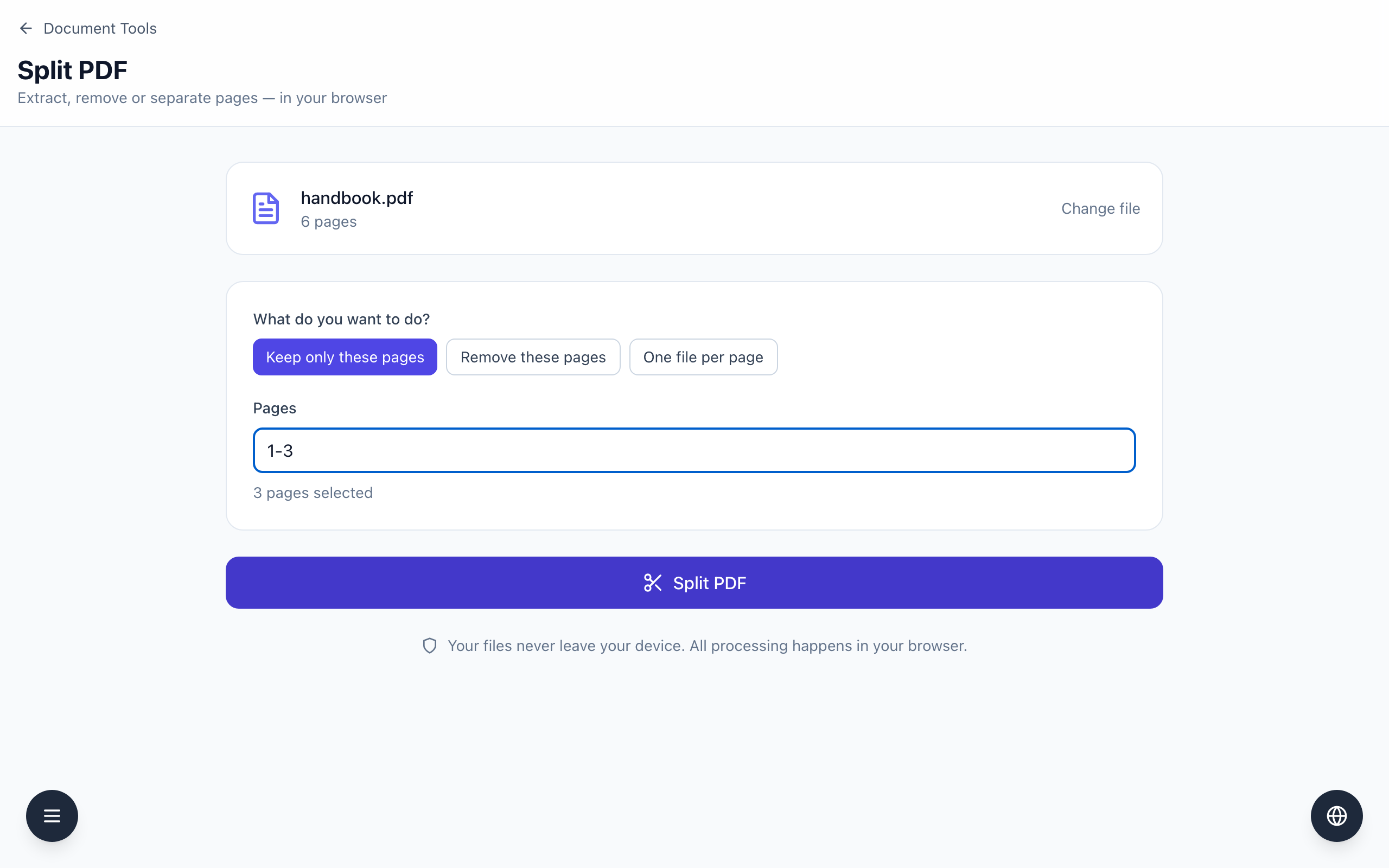
Typing 1-3 on the same file also shows 3 pages selected, so the count does not warn you. The output holds the cover plus printed pages 1 and 2, and printed page 3 is missing. That is why you should open the result and compare the first and last page with what you were asked for.
Roman-numeral front matter works the same way: count every page in the file, whether or not it shows a number. Extracting creates a new file and leaves the original untouched.
If it doesn't work
If the wrong pages came out, recount the shift; some files have more than one front-matter section.
If you see Enter which pages you want, for example 1-3, 7., the box is empty or the numbers are beyond the last page.
If the count is lower than expected, check for typos. Only digits, commas and dashes are understood.
If your viewer shows a page like "3 of 6", use the second number's position (the 3), not the printed footer.