Extract Selected Pages From a PDF
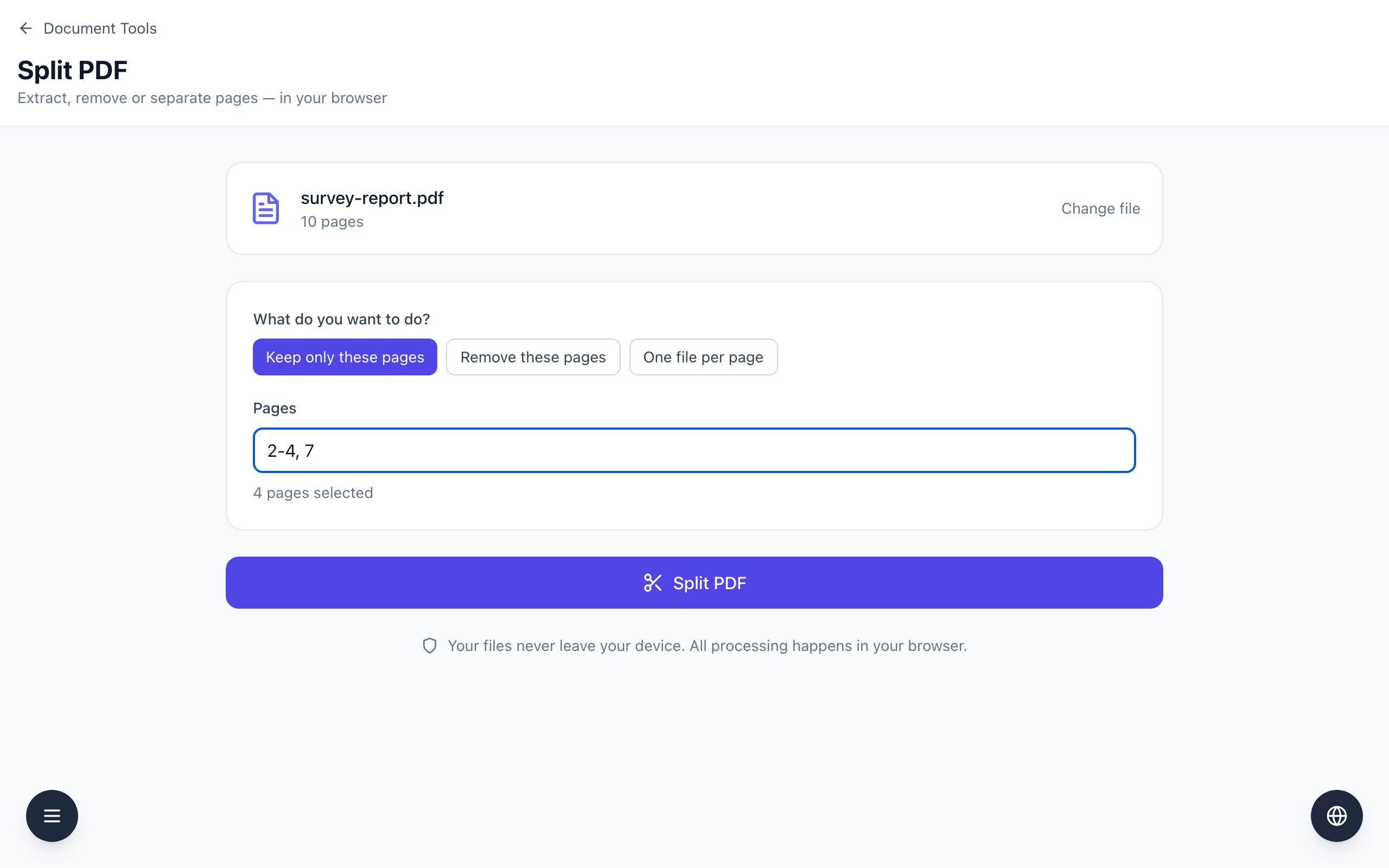
To pull pages out of a PDF, open Split PDF, keep the mode Keep only these pages, type the pages in the Pages box, for example 2-4, 7, and click Split PDF. The tool says 4 pages selected and downloads a new PDF with just those four pages.
Extract pages 2 to 4 and 7
- Find the page numbers you need in the PDF viewer. These are the position in the file (page 1 is the first page), which can differ from printed numbers if there is a cover.
- Open Split PDF and drop in the file. The example is a generated 10-page file,
survey-report.pdf. The card shows its name and 10 pages. - Under What do you want to do?, leave Keep only these pages selected. The other choices are Remove these pages and One file per page.
- In Pages, type
2-4, 7. Commas separate single pages and a dash marks a range. Below the box you should see 4 pages selected. - Click Split PDF. The file
survey-report-extracted.pdfdownloads. - Open it. In the test it had 4 pages: Survey pages 2, 3, 4 and 7.
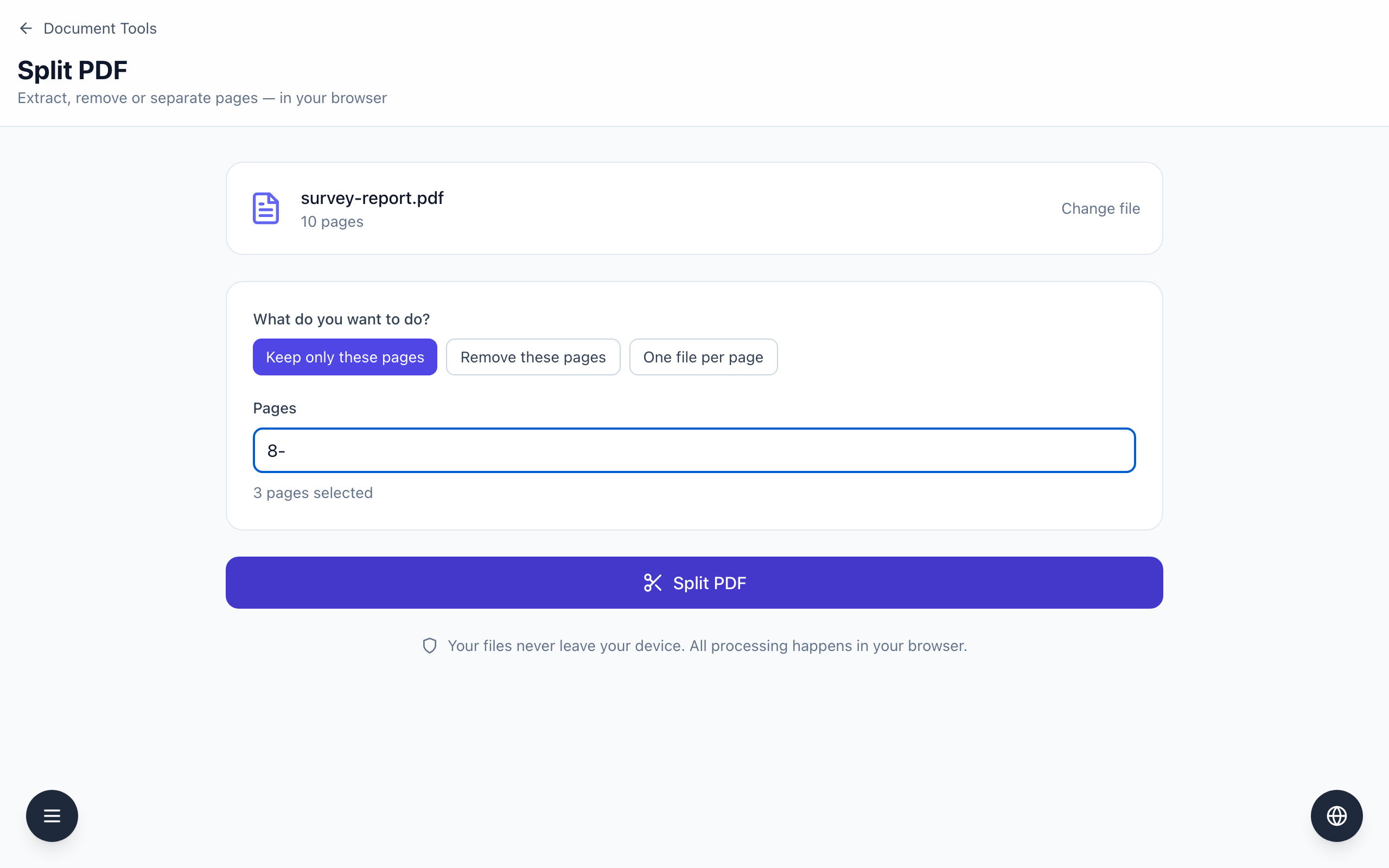
Open-ended ranges and page order
A dash with nothing after it runs to the last page. For the same 10-page file, 8- shows 3 pages selected and extracts pages 8, 9 and 10. A range with nothing before it, such as -3, starts at page 1.
The extracted pages always keep their order from the original file. Typing 7, 2-4 gave the same result as 2-4, 7: pages 2, 3, 4 and 7. If you need a different order, extract first and rearrange the pages in a PDF editor. Numbers outside the file, such as 12 in a 10-page file, are ignored.
Extracting creates a new file and does not change the original, so the original still contains every page. If you are sharing a subset of a confidential document, send only the extracted file, and open it first to check that no neighboring page came along.
If it doesn't work
- If you see Enter which pages you want, for example 1-3, 7., the box is empty or none of the numbers are inside the file.
- If the count is lower than expected, check for typos: only digits, commas and dashes are understood, and a number larger than the page count is dropped.
- If the wrong pages came out, compare the file's real page position with the printed number on the page.
- If the file cannot be read, you will see This file could not be opened as a PDF.