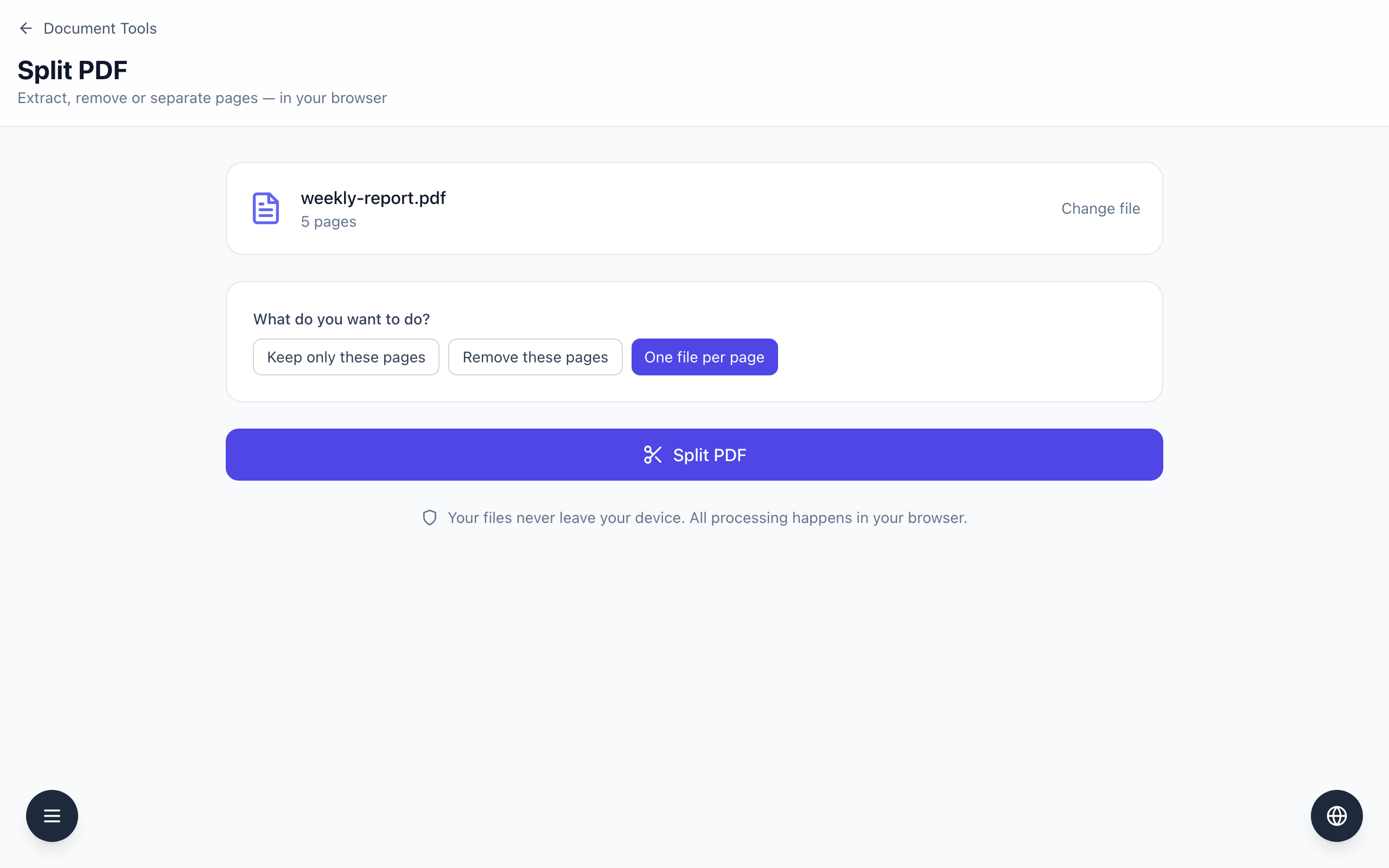
To turn every page of a PDF into its own file, open Split PDF, choose One file per page and click Split PDF. The tool downloads a ZIP named after your file, such as weekly-report-pages.zip, with one small PDF per page.
Split a 5-page report into five files
Open Split PDF and drop in your file. The example is a generated 5-page document, weekly-report.pdf. The card shows its name and 5 pages.
Under What do you want to do? click One file per page. The Pages box disappears because every page is used.
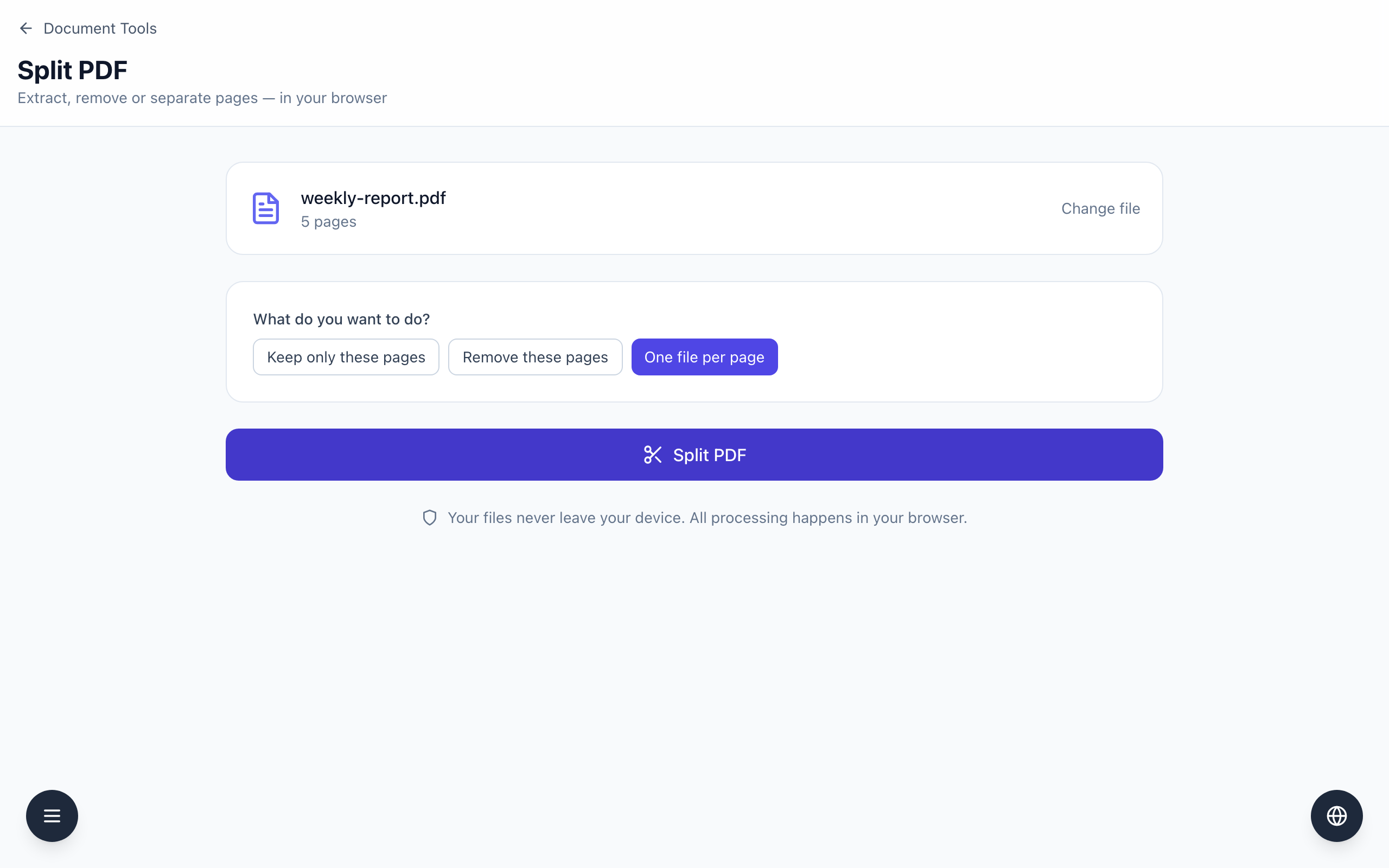
Click Split PDF. The browser downloads weekly-report-pages.zip.
Unzip it. In the test the ZIP held five files: weekly-report-001.pdf, weekly-report-002.pdf up to weekly-report-005.pdf. The number is the page position, padded to three digits, so the files sort correctly.
Open the first and the last file. Each has a single page: Report page 1 and Report page 5 in the test.
Before you share the files
A 200-page document gives 200 files, so check that this is what you need. If you only want a few pages, use Keep only these pages instead and get one PDF. The original file is not changed, so keep it as the complete copy.
Splitting does not remove anything from a page. A page that contains private details still contains them in its own file, so open each file you plan to send. The tool says your files stay in your browser.
If it doesn't work
If you see This file could not be opened as a PDF., the file may be damaged. Try opening it in a PDF viewer first.
If the ZIP does not appear, check your browser's downloads and any blocked-download notice.
If you need your own names, rename the files after unzipping; the tool uses the name of the original plus the page number.
If the file names do not sort the way you expect, compare the number in the name with the page text; the number is the page position in the original.