Fix a Sideways Photo by Checking Its Orientation
Open the photo in the Image Rotator, click 90° CW or 90° CCW until the Preview is upright, and click Download. The saved file has the rotation applied to its pixels. Check the result in the app where the photo looked sideways.
Rotate a sideways photo
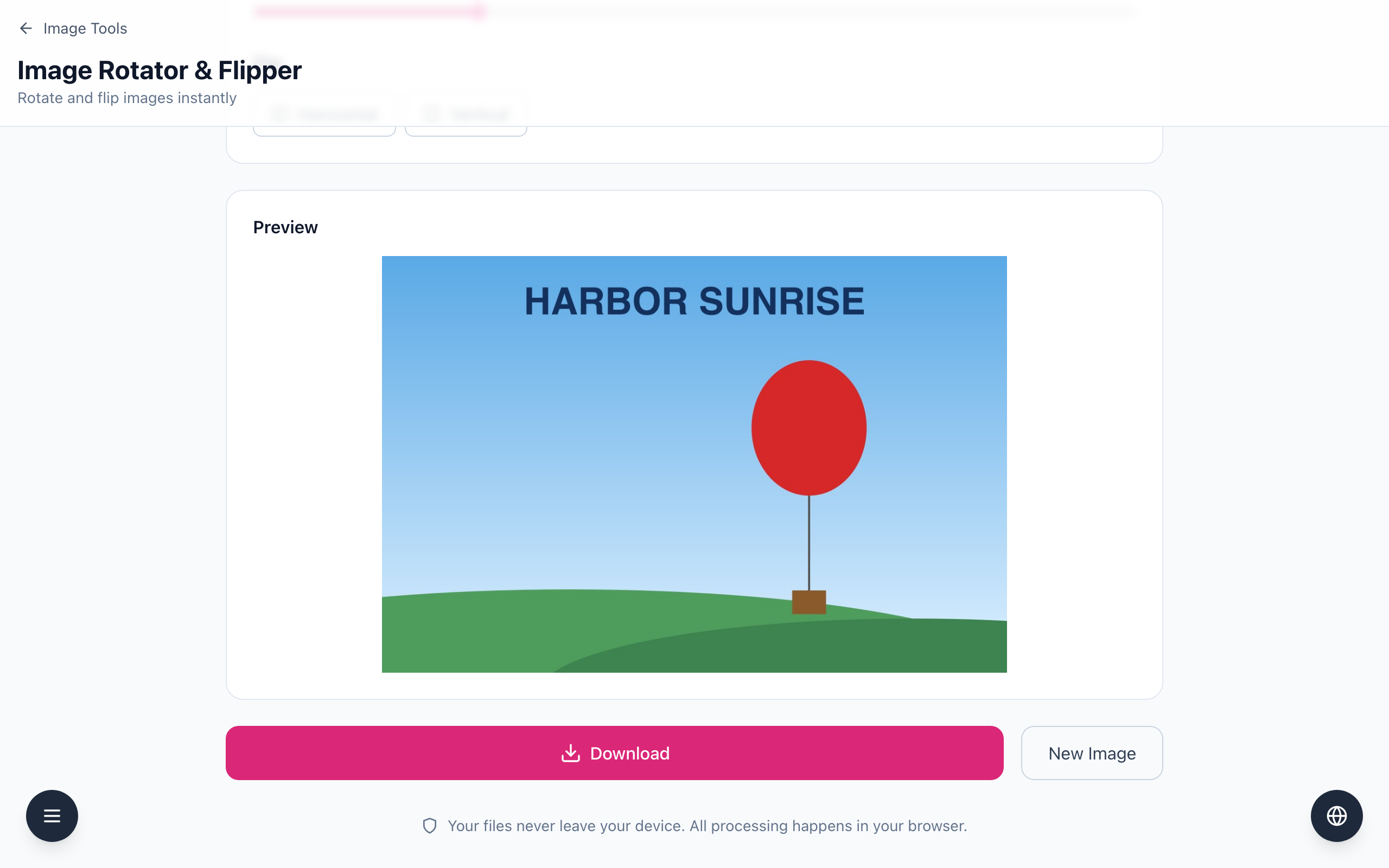
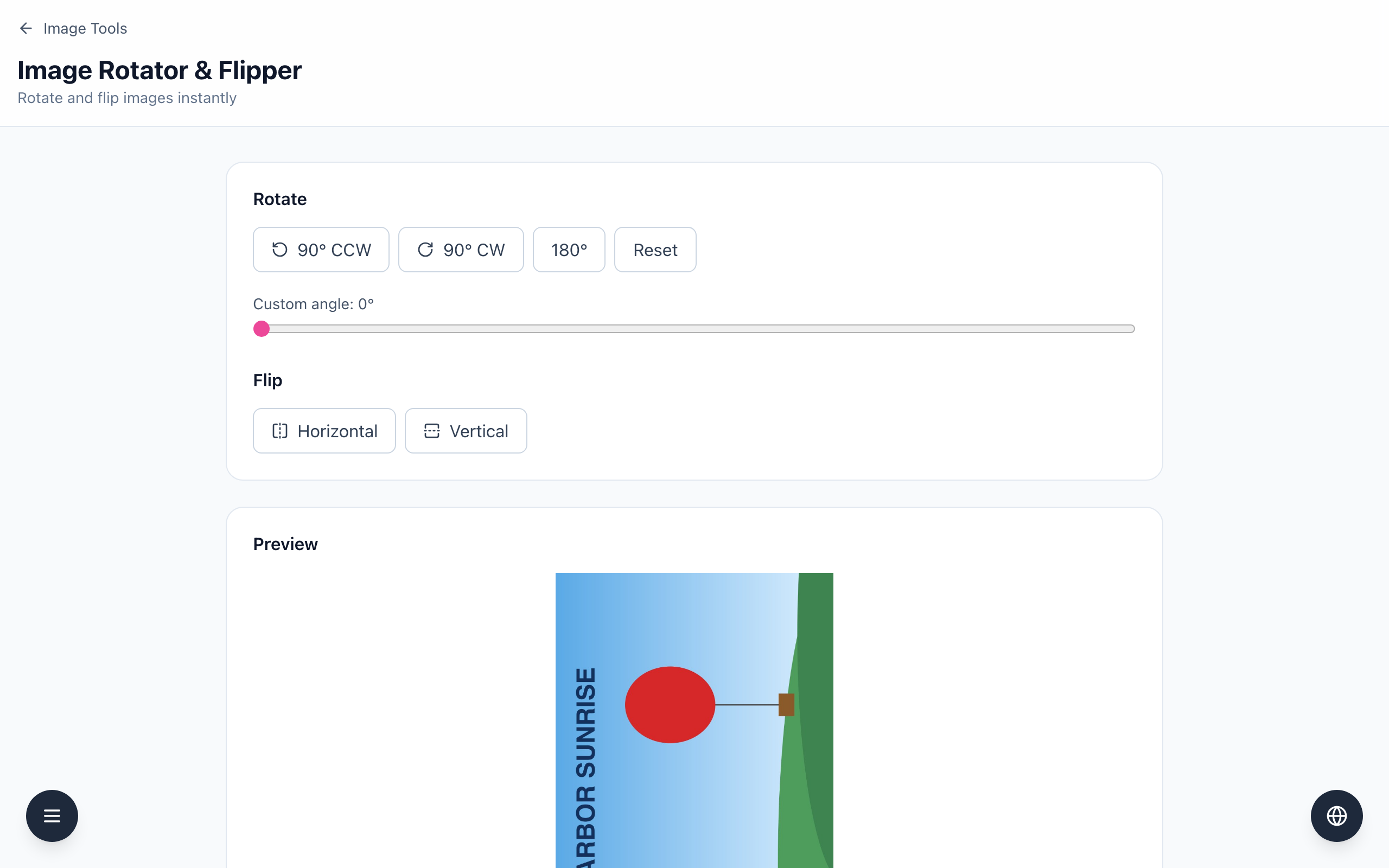
- Open the Image Rotator & Flipper and drop in a copy of the photo. The example is an 800 × 1200 file whose scene lies on its side: the title HARBOR SUNRISE reads from bottom to top.
- Look at the Preview and pick the direction. The text reads upward, so the top of the photo points left. Click 90° CW.
- The Preview is now a 1200 × 800 landscape image and the title reads left to right. The slider shows Custom angle: 90°. If you went the wrong way, click Reset and try 90° CCW. Use 180° for an upside-down photo.
- Click Download. The file is named
rotated_plus the original file name and keeps the original file type. - Open the downloaded file in the app where the original looked wrong and check it against a landmark such as readable text or the horizon.
Why a photo looks sideways in one app only
Many phone photos store their pixels in one orientation and add an EXIF tag that tells viewers to rotate them. Apps that read the tag show the photo upright; apps that ignore it show it sideways. The Image Rotator draws the image the way your browser shows it. In a Chromium-based browser, a test JPEG with that tag set was already upright in the Preview at 0°. If your photo is upright in the Preview but sideways elsewhere, rotating it here would turn it the wrong way for apps that read the tag. Judge by the Preview: when the Preview looks sideways, rotate it until it is upright. Your browser may handle this differently from the one tested.
The downloaded file is a fresh export from the page, with the rotation baked into the pixels. In the tested file, no orientation tag was kept, so apps that read the tag no longer rotate it a second time. Keep the original in case you need it.
If it doesn't work
- If the photo is still sideways in another app, open the downloaded
rotated_file there, not the original. - If the Preview is already upright but another app shows it sideways, the other app ignores the orientation tag. Rotate anyway and download: the new file has the rotation in its pixels. Then check the new file in that app.
- If the photo turned the wrong way, click Reset and use the other 90° button.