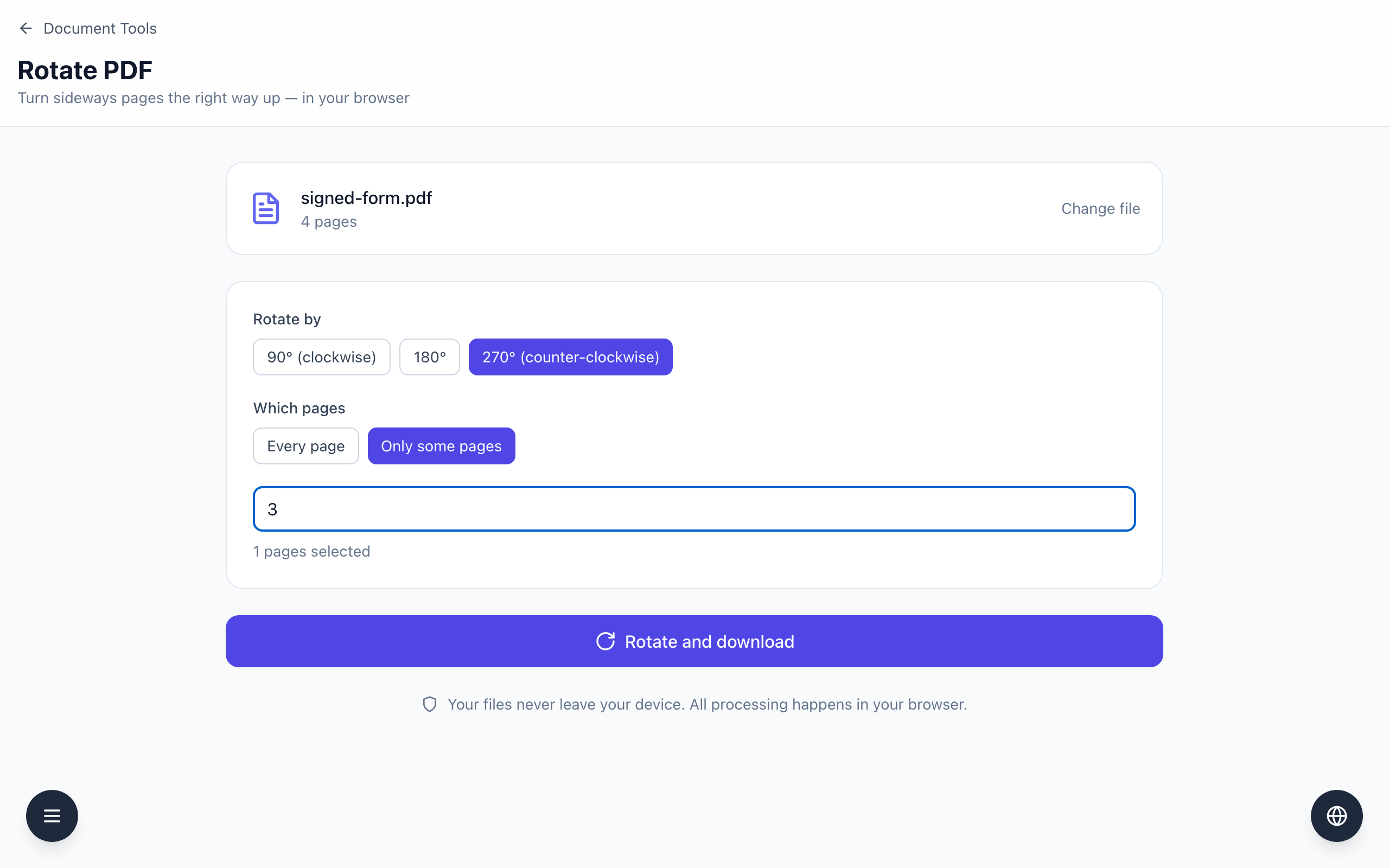
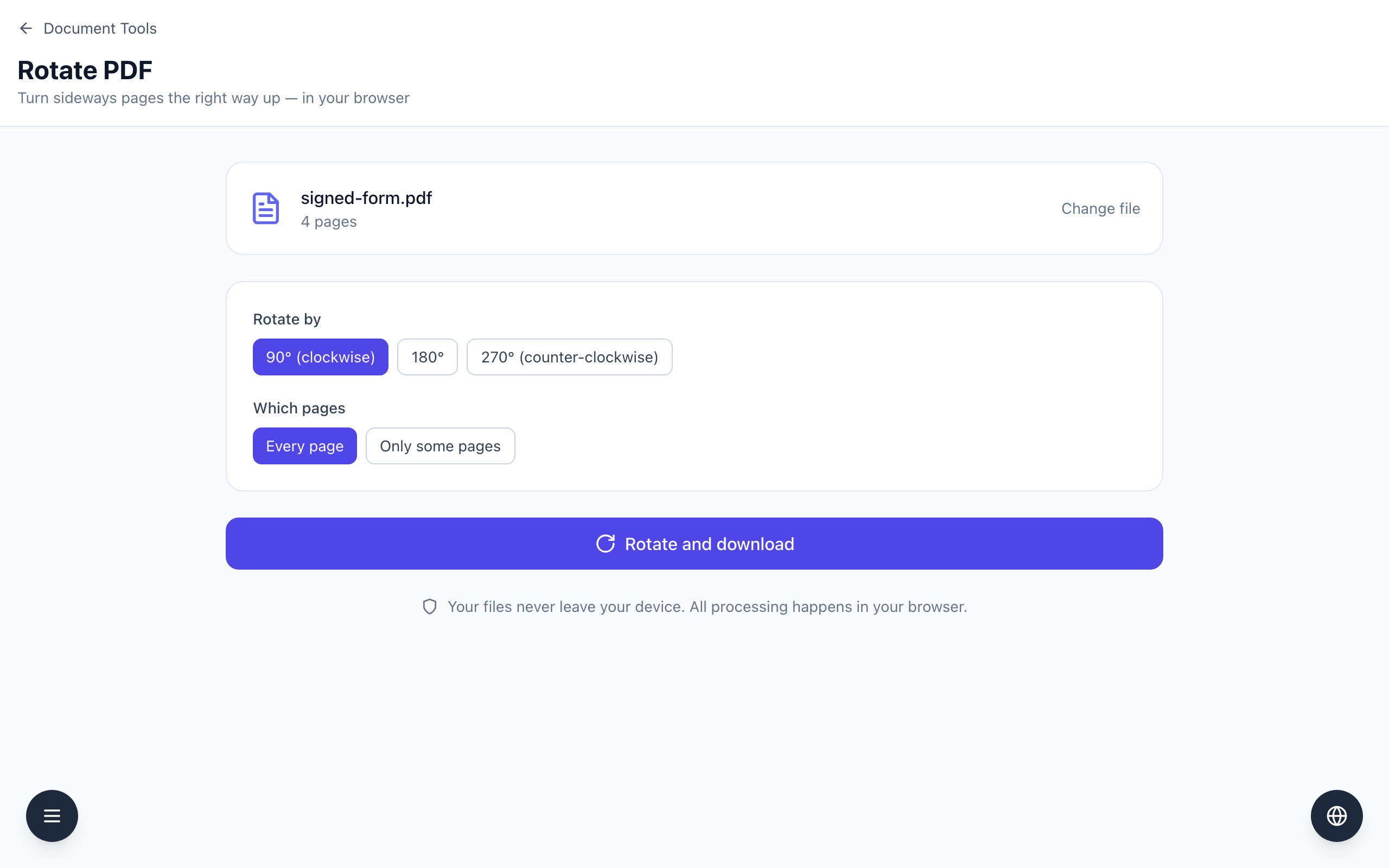
To fix one sideways page, open Rotate PDF, pick the turn, choose Only some pages, type the page number and click Rotate and download. The tool has no preview, so open the downloaded file and look at the page before you send it.
Turn one sideways page upright
Open the PDF in a viewer and note which pages are sideways and which way. The example is a generated 4-page signed-form.pdf where page 3 appears turned 90° clockwise.
Open Rotate PDF and drop in the file. The card shows 4 pages.
Under Rotate by choose the turn that undoes the problem. A page shown turned clockwise needs 270° (counter-clockwise). The other choices are 90° (clockwise) and 180°.
Under Which pages click Only some pages and type 3. The text below reads 1 pages selected. Ranges like 2-4, 7 also work.
Click Rotate and download. The file signed-form-rotated.pdf downloads.
Open it and check page 3, then the pages on either side. In the test the file still had 4 pages and page 3 was upright; the others did not change.
Turns add to what the page already has
The tool adds your turn to the page's existing rotation. In the test, page 3 already carried a 90° rotation, and adding 270° brought it to 0°. Picking Every page turns the whole document, including pages that were already correct, so use it only when all pages are sideways.
Rotation only changes how a page is displayed. It does not erase text, fix a scan, or make a viewer that ignores display settings show it the same way. Keep the original and open the new file in the place you will submit it.
If it doesn't work
If the page is now upside down, rotate it again by 180° or run the original with the other direction.
If you see Enter which pages to rotate, for example 1-3, 7., the Only some pages box is empty or out of range.
If the wrong pages turned, remember that numbers are file positions, not printed footers.
If the file cannot be read you will see This file could not be opened as a PDF.