Rotate an Image Without Changing Its Shape
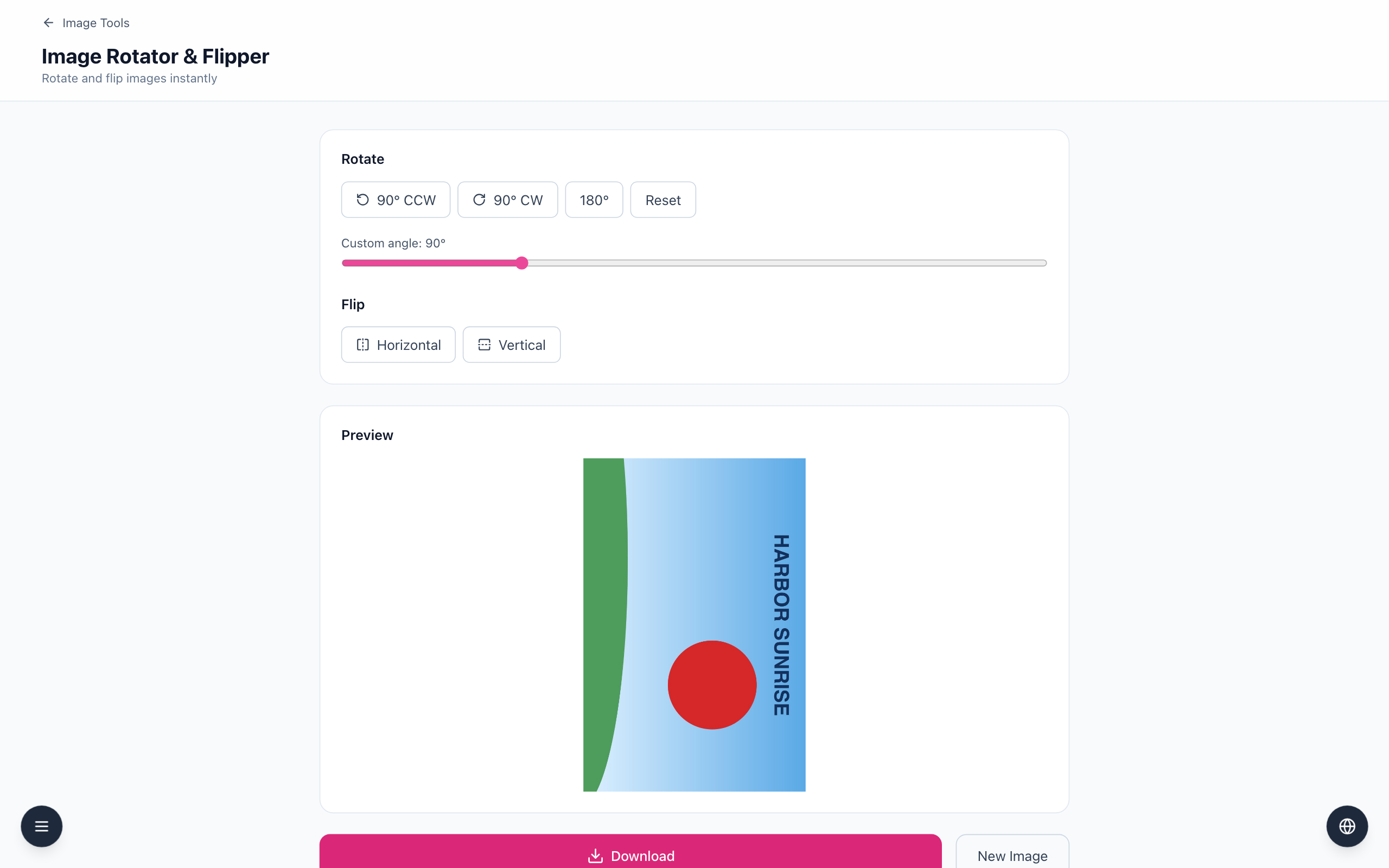
Click 90° CW or 90° CCW and the image keeps its proportions: a 1200 × 800 landscape picture becomes an 800 × 1200 portrait one, with nothing stretched. 180° turns it upside down and keeps 1200 × 800. Only angles in between, set with the slider, change the canvas to a different size.
Turn the image and check the new size
- Open the Image Rotator & Flipper and drop in a copy of the image. The example is a 1200 × 800 landscape picture with a red circle and the text HARBOR SUNRISE.
- Under Rotate, click 90° CW. The Preview becomes a tall image with the text running top to bottom, and the label reads Custom angle: 90°. The circle is still round.
- To go the other way, click Reset, then 90° CCW. For an upside-down picture click 180°; the preview keeps the original landscape shape.
- Click Download. The file is named
rotated_plus the original file name and keeps the original file type. - Check the size in your computer's file properties. The tool has no size readout. The example downloaded as 800 × 1200 after 90° CW and as 1200 × 800 after 180°.
Angles that are not quarter turns
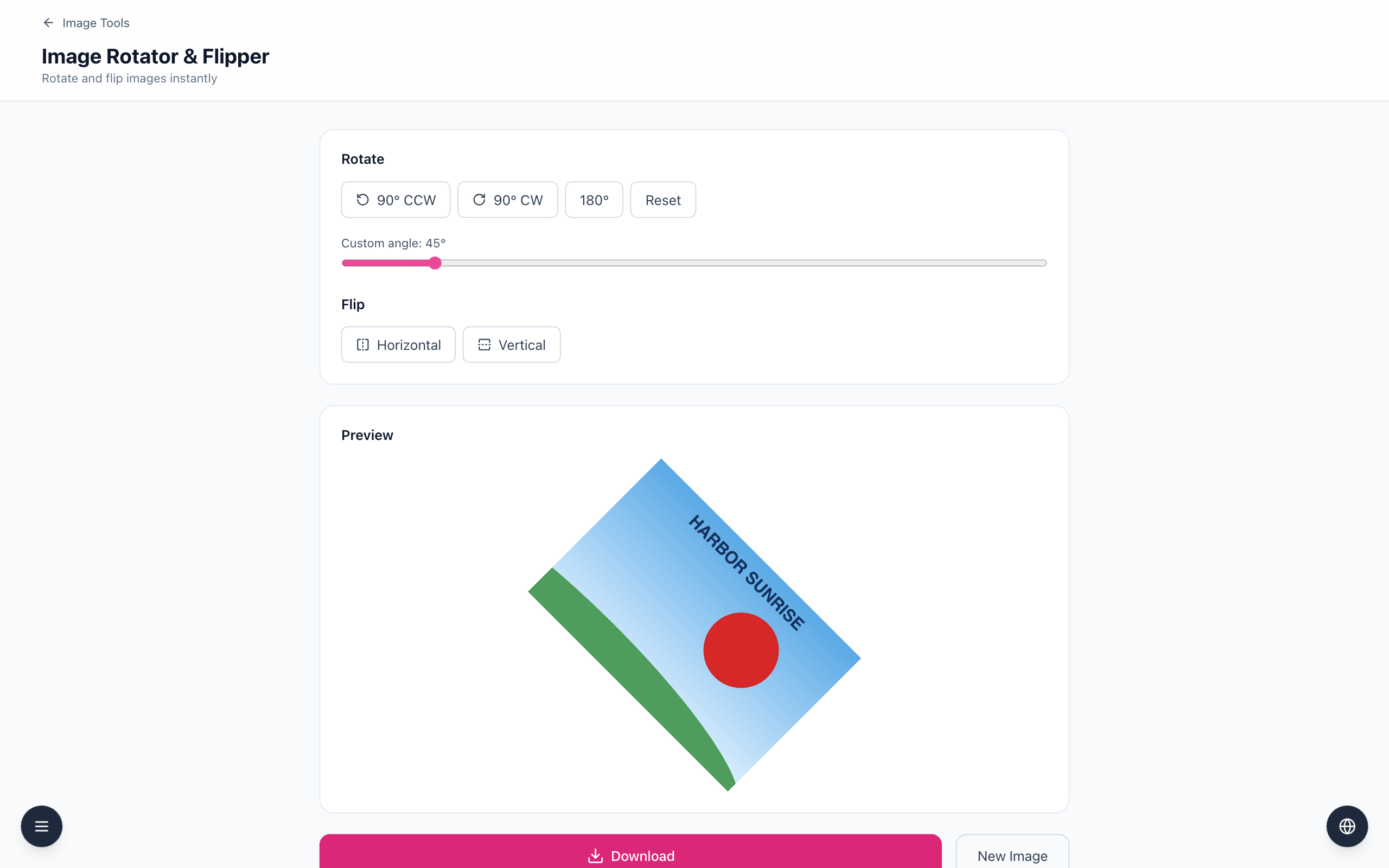
With the slider at 45°, the canvas grows so the whole image fits: the example became 1415 × 1415. The corners that the picture does not cover are empty. The preview shows them as the white page background, but a JPEG cannot store transparency and the downloaded JPEG had those corners filled with black. If you only wanted to straighten a sideways picture, stay on the 90° buttons.
Rotation never stretches an image. If a picture looks squashed afterwards, a later width or height change in another editor, or the page it is displayed on, is the more likely cause. Keep the original file, and open the downloaded copy where you plan to use it.
If it doesn't work
- If the picture turned the wrong way, click Reset and use the other 90° button.
- If the corners are black or the canvas is bigger than expected, the slider is not on a multiple of 90°. Click Reset and use the buttons.
- If another app still shows the image sideways, open the
rotated_file, not the original.