Find the Original Price Before a Percentage Discount
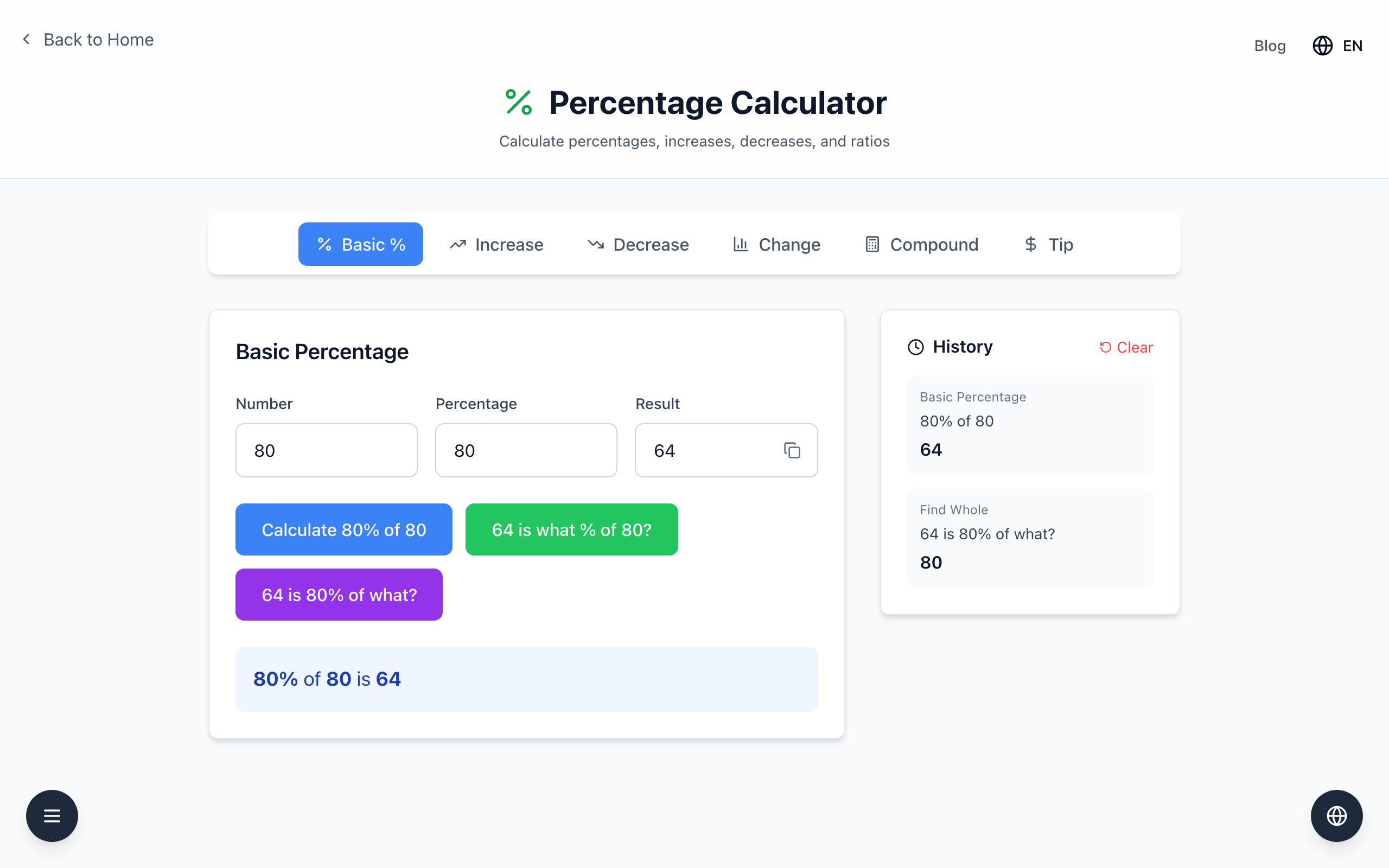
If an item costs $64 after a 20% discount, the original price was $80. In the Percentage Calculator, open Basic %, enter 64 as the Result and 80 as the Percentage, then click 64 is 80% of what?. Adding 20% back to 64 would give only $76.80, because the discount was taken from the larger original price.
Why you divide by the remaining percentage
A 20% discount leaves 80% of the original price, so sale price = original × 0.80. Reverse it by dividing: 64 ÷ 0.80 = 80. For a 25% discount the sale price is 75% of the original, so you divide by 0.75.
Find the original price in the tool
- Open the Percentage Calculator and stay on the Basic % tab.
- Type
64in Result (the sale price) and80in Percentage (what is left after a 20% discount). Leave Number empty; once Number and Percentage are both filled, the tool recalculates Result by itself. - Click the purple button, which now reads 64 is 80% of what?. Number fills with
80.
Check the answer
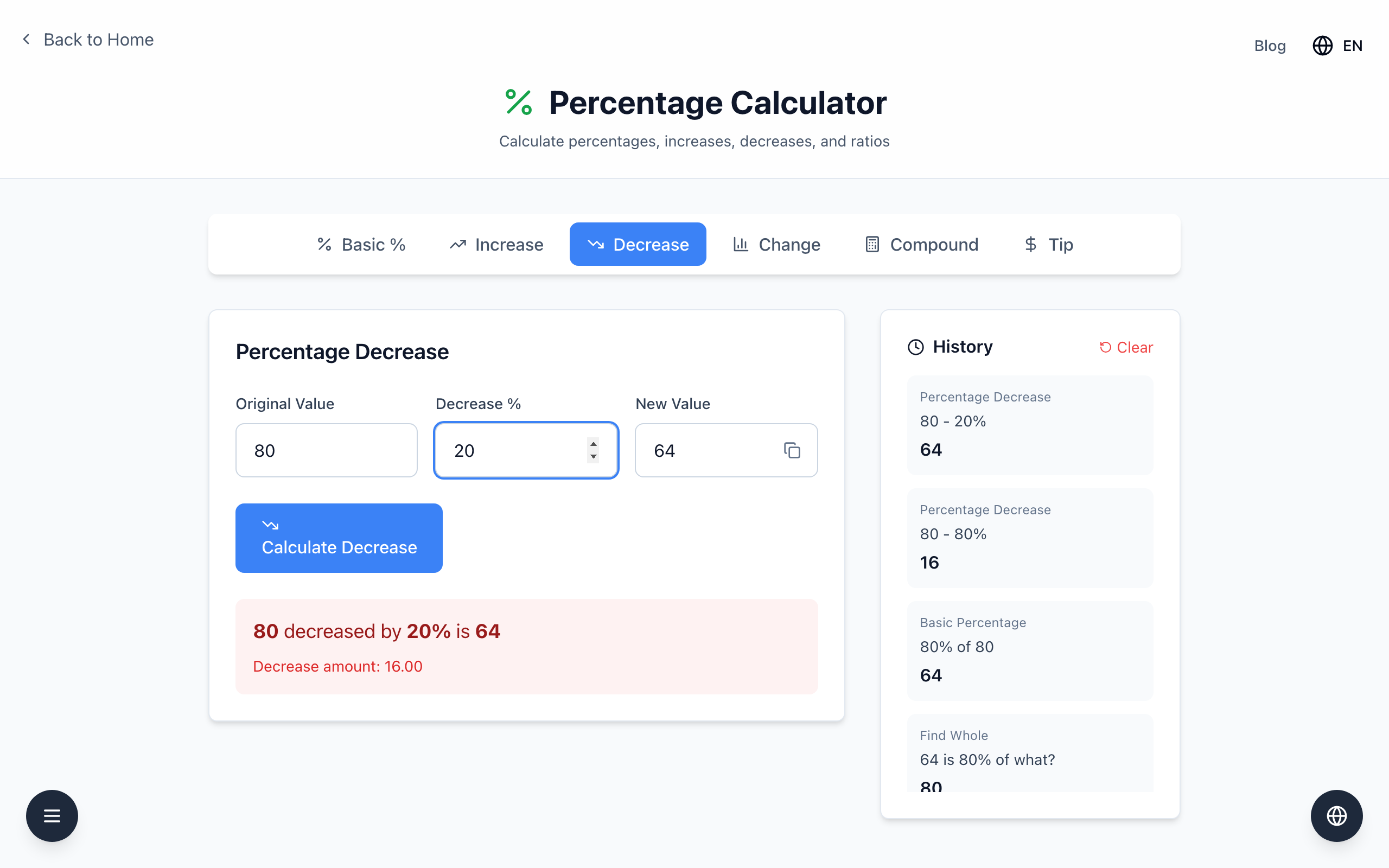
- Click the Decrease tab. The fields keep your numbers, so Original Value shows 80 and Decrease % still shows 80.
- Change Decrease % to
20. The result line reads 80 decreased by 20% is 64 and Decrease amount: 16.00. - Look at History on the right. It also lists the in-between step with 80%, which is only the leftover value from the shared field and not a result you need.
To see the common mistake, open Increase with 64 and 20: the tool gives 76.8, not 80.
Limits
This works for one percentage discount. A fixed coupon, tax, or several stacked promotions need to be undone one step at a time, in reverse order. Store prices are rounded to cents, so the reverse result can differ by a cent from the printed original. The tool shows the full decimal it computes (for example a long fraction), so round it yourself.
If it doesn't work
- If clicking the button changes nothing, check that both Result and Percentage have numbers and the percentage is not 0.
- If Result changed after you filled Number, that is the automatic calculation; clear Number and click the purple button again.
- If you used a discount of 20, enter the remaining 80, not 20, in Percentage.