Resize to Exact Social Image Dimensions Without Distortion
November 16, 20263 min read
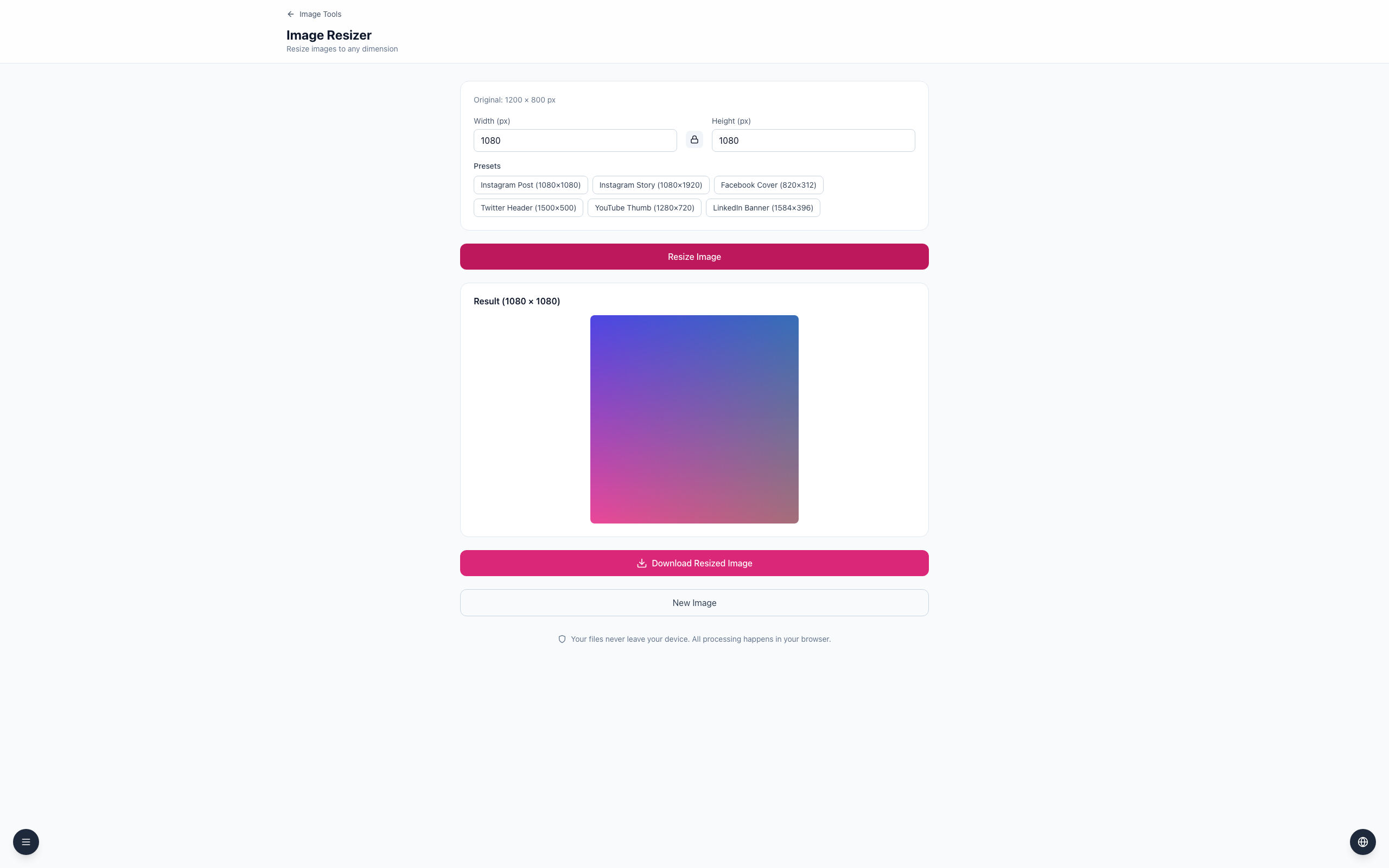
An exact target size preserves shape only when the source has the same aspect ratio. The preset resizes directly to its dimensions, so a 1200 × 800 image becomes stretched if forced into a 1080 × 1080 square.
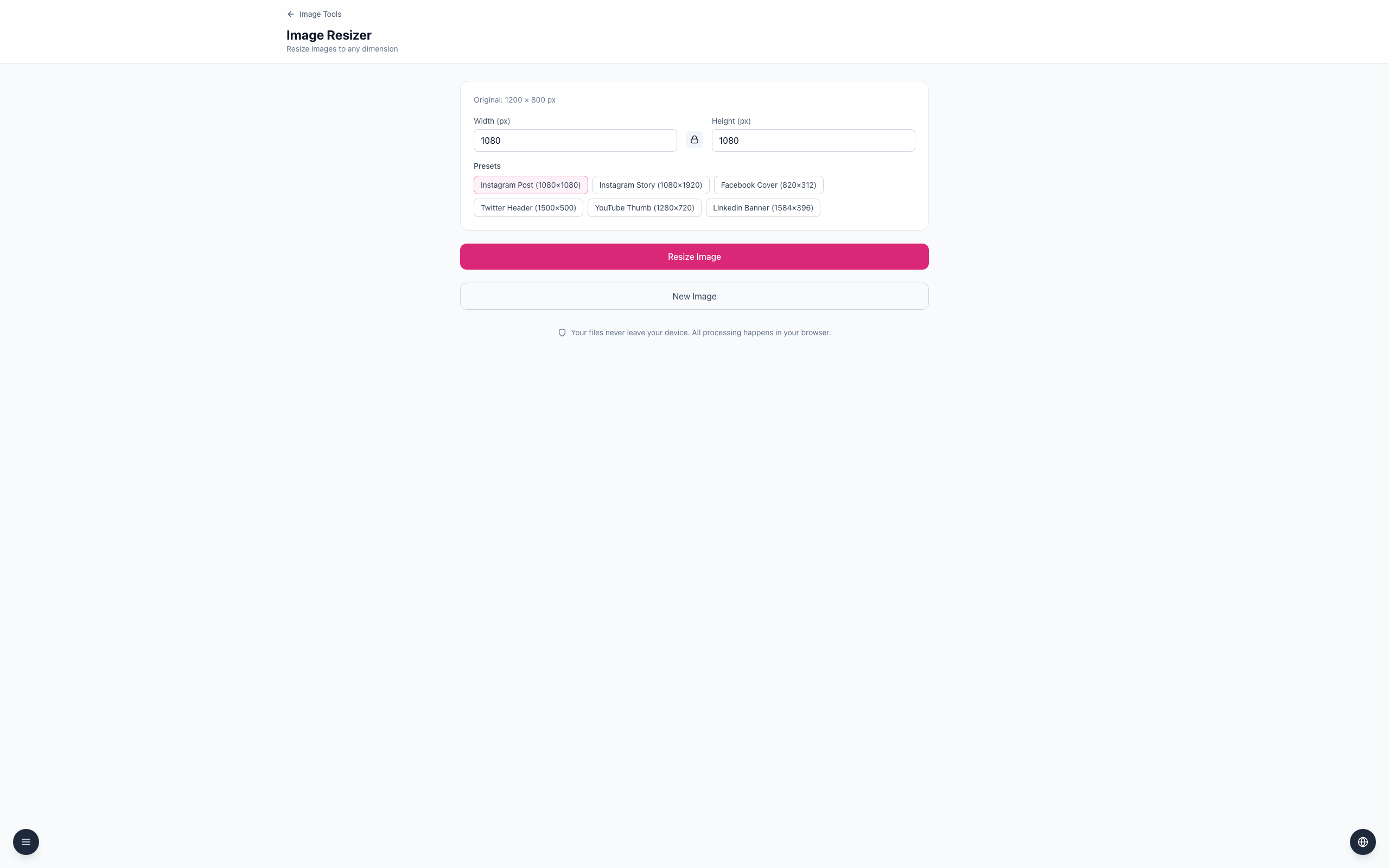
See the preset override the ratio
Open the Image Resizer and upload a 1200 × 800 image.
Click Instagram Post (1080×1080). Width (px) and Height (px) both show 1080; this preset overrides the original ratio.
Click Resize Image to see the square Result (1080 × 1080). To avoid distortion, crop or pad a copy to a square first, then resize that square to 1080 × 1080.
The resizer stretches to the selected dimensions rather than automatically cropping or adding padding. Use a suitable crop tool and check the subject before resizing.
If it doesn't work
If people or objects look stretched, compare the source and target ratios.
Keep the original and crop a copy to the target ratio first.
Check the destination's current dimension requirements before uploading.