To meet an upload limit, compare the compressed file's actual size with the limit and leave some margin. Adjust quality or image dimensions until the result fits while still looking usable.
Fit a file under a stated limit
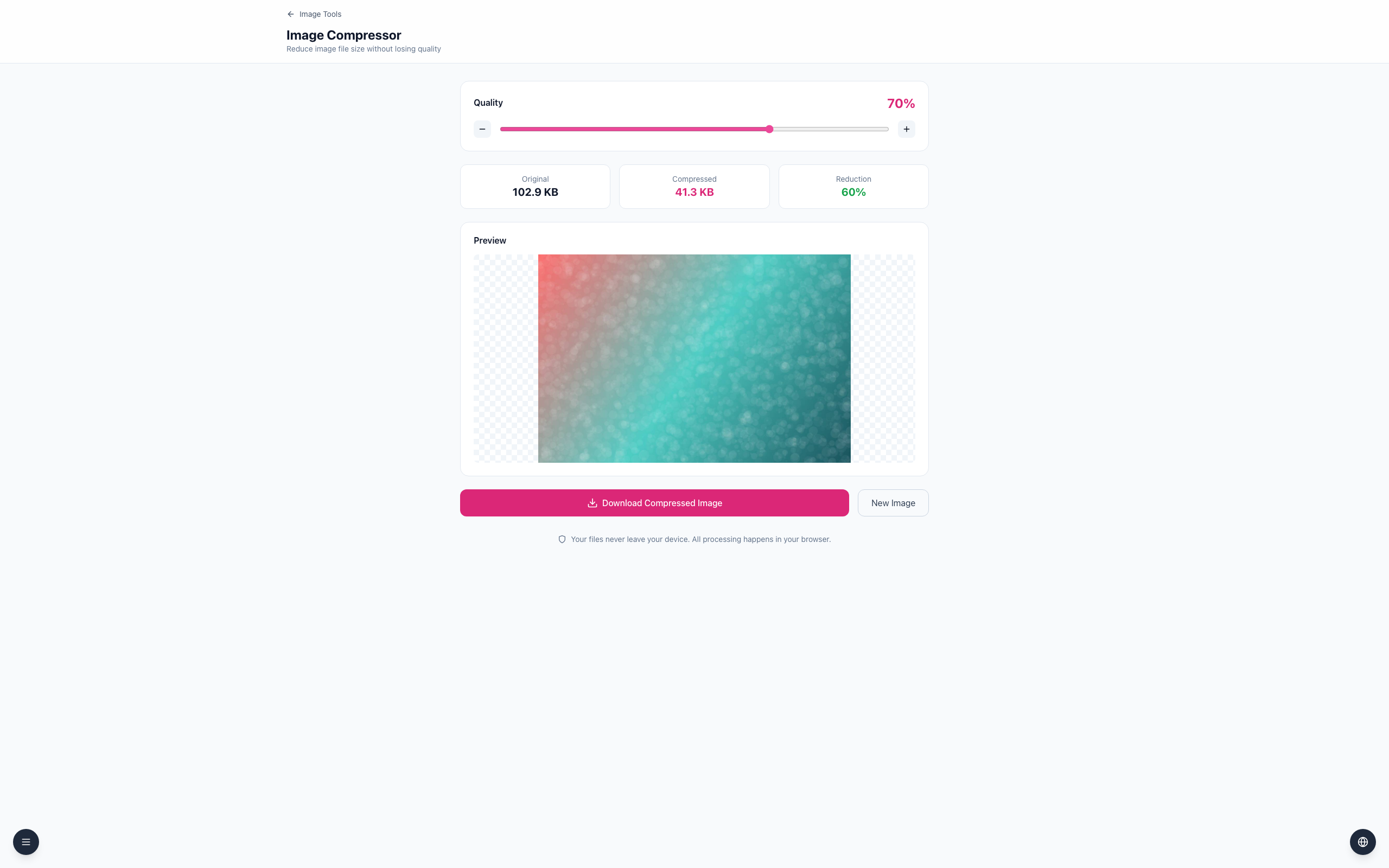
Open the Image Compressor and upload a JPEG. Our example shows Original 102.9 KB.
At Quality 70%, the displayed Compressed size is 41.3 KB. For a hypothetical 100 KB limit, compare the result to the receiving service's stated limit.
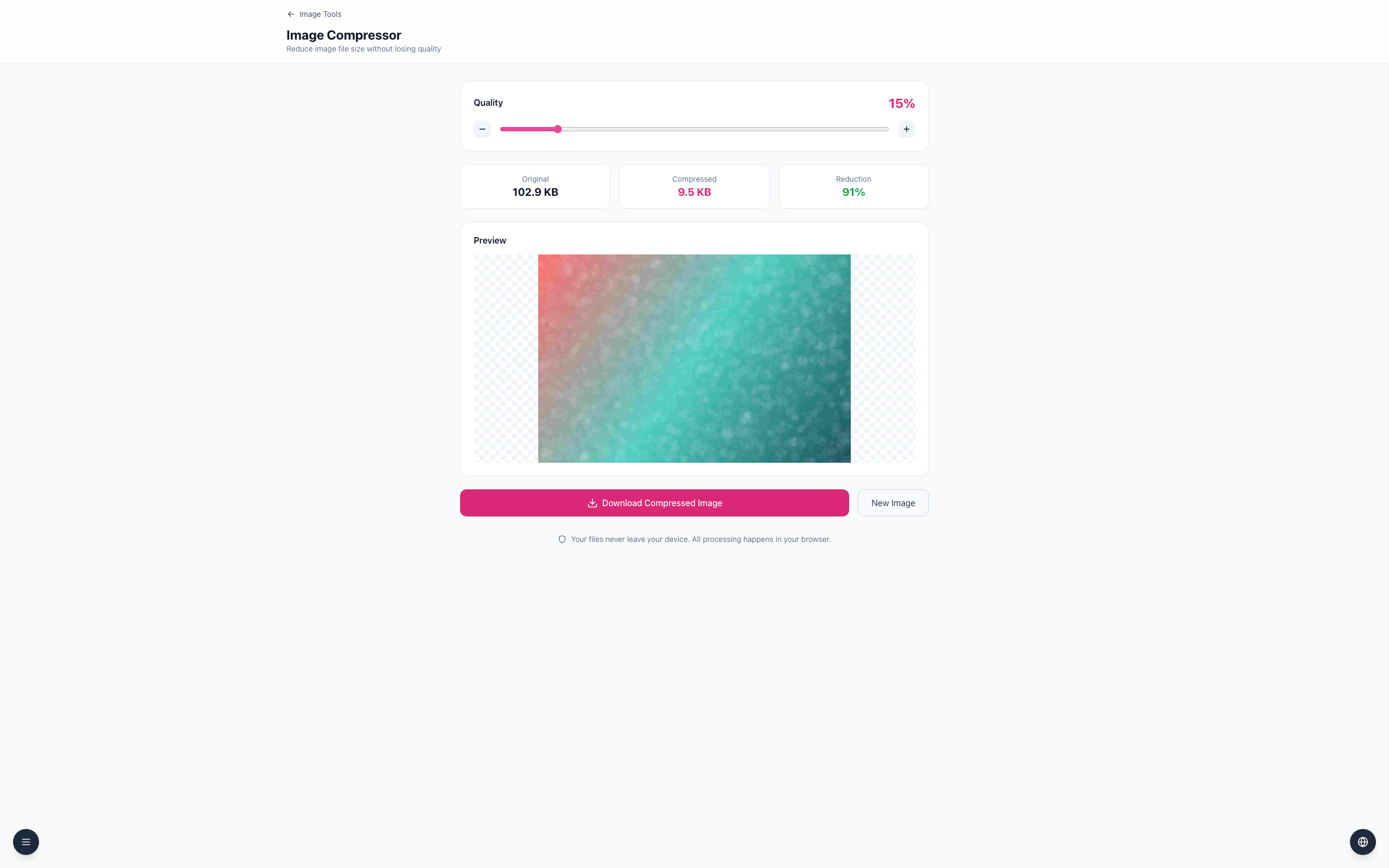
If needed, lower Quality further, check the updated size — at 15% it reads Compressed 9.5 KB (Reduction 91%) — then select Download Compressed Image and inspect the downloaded file before uploading.
If quality must be reduced too far, resize a copy to fewer pixels and compress it again. Email attachment limits can also include encoding overhead and other attachments.
If it doesn't work
If the service still rejects the image, check its exact limit and accepted formats.
Do not assume PNG will shrink when changing a quality slider.
Keep the original in case the smaller copy loses important detail.