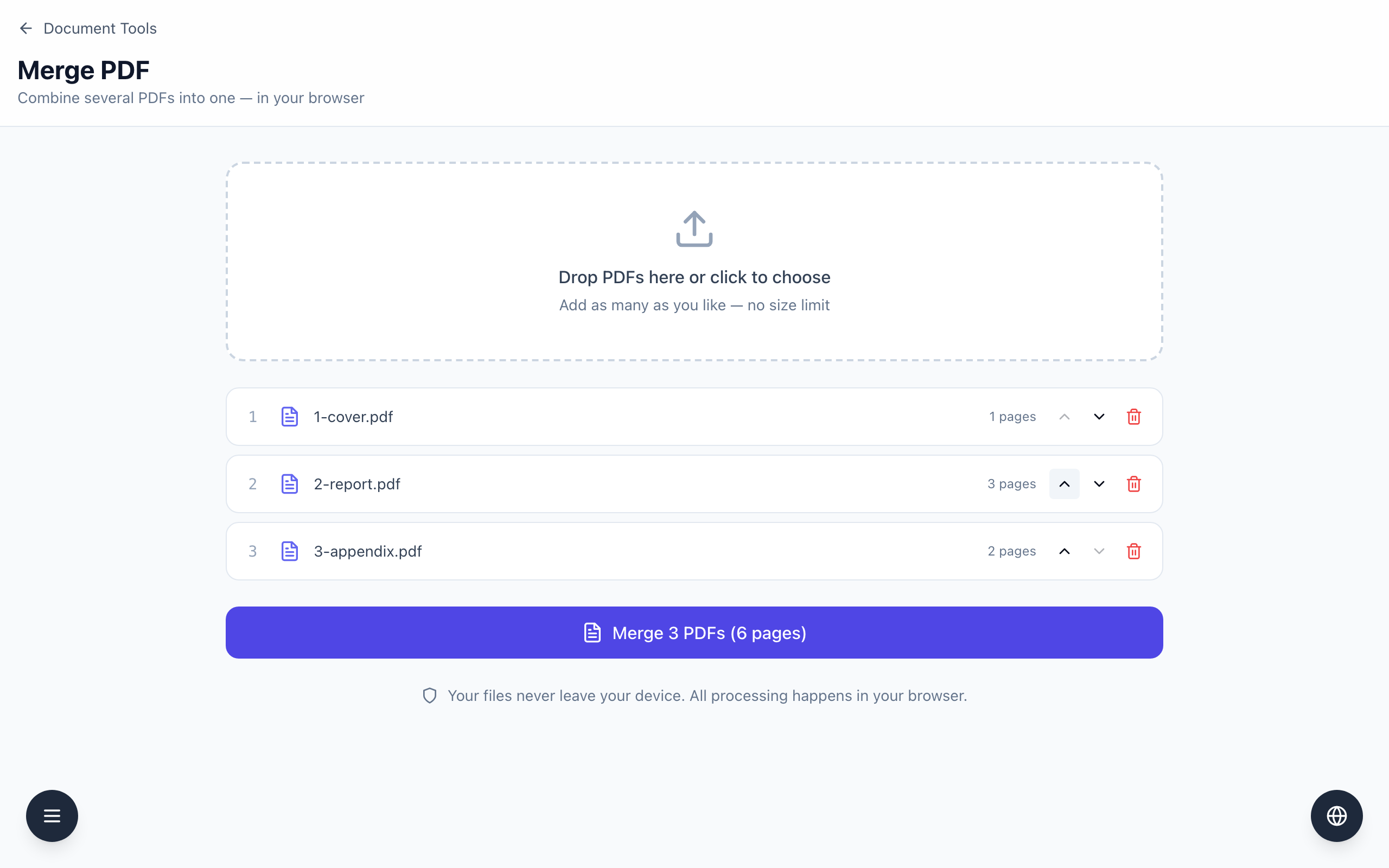
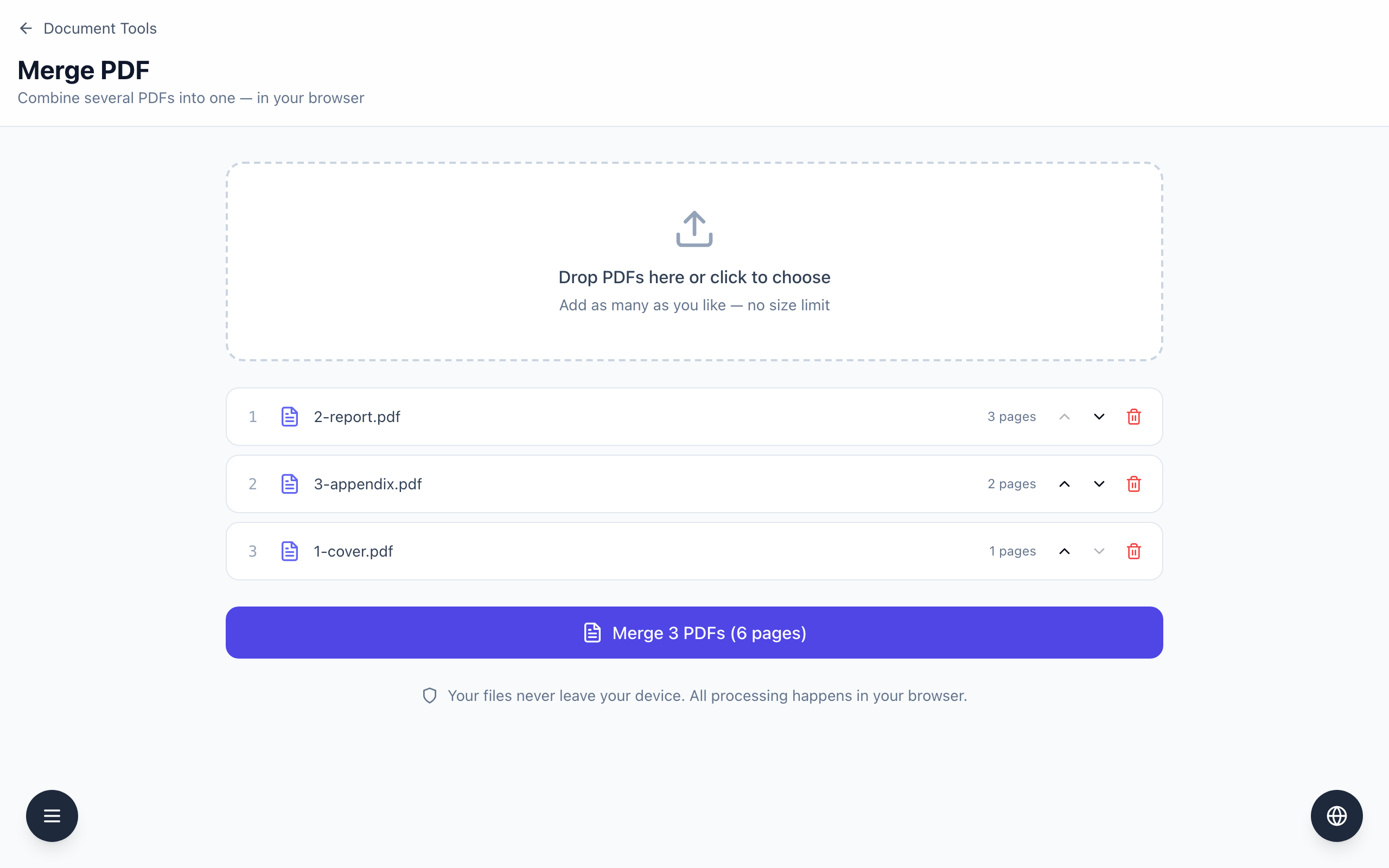
Merge PDF joins files in the order of the list on screen, top to bottom. Add the files, use the small up and down arrows to put them in order, then click Merge. The result downloads as merged.pdf.
Put the files in order, then merge
Open Merge PDF and choose your files. The example is three small PDFs: 1-cover.pdf (1 page), 2-report.pdf (3 pages) and 3-appendix.pdf (2 pages).
Look at the numbered list. Each row shows the file name and its page count. Files are added in the order you selected them, and files you add later go to the end. In the test, the three files arrived as report, appendix, cover.
Fix the order with the arrows at the right of each row: the up arrow moves a row up, the down arrow moves it down, and the red bin removes it. The first row's up arrow and the last row's down arrow are greyed out. Move the cover to the top: 1-cover.pdf, 2-report.pdf, 3-appendix.pdf.
Check the button text: Merge 3 PDFs (6 pages). The page total is the sum of the rows.
Click the button. The browser downloads merged.pdf.
Open merged.pdf and look at page 1, the pages where one file ends and the next begins, and the last page. In the test, the pages came out as Cover 1/1, Report 1/3 to 3/3, Appendix 1/2 and 2/2.
The page total matches what you expect but does not prove the order is right, so open the file. The tool copies pages as they are, so a page that was sideways in a source file is still sideways. Keep the original files until the merged one has been checked, and follow your organization's rules for confidential documents. The merge runs in your browser.
If it doesn't work
If the button is greyed out, add at least two PDFs. The page says Add at least two PDFs to merge.
If a file does not appear, only names ending in .pdf are accepted. An unreadable file shows One of the files could not be opened as a PDF.
If a file is in the wrong place, use the arrows before clicking the merge button. There is no drag and drop for rows.
If a row is a mistake, click its red bin, or re-add the right file afterward.