Use Markdown Headings to Give a Document Structure
Start a line with # and a space for the document title, ## for each main section and ### for a part inside a section. The space after the hash marks is required: #Title stays plain text. Choose the level by where the section belongs, not by how big you want the text.
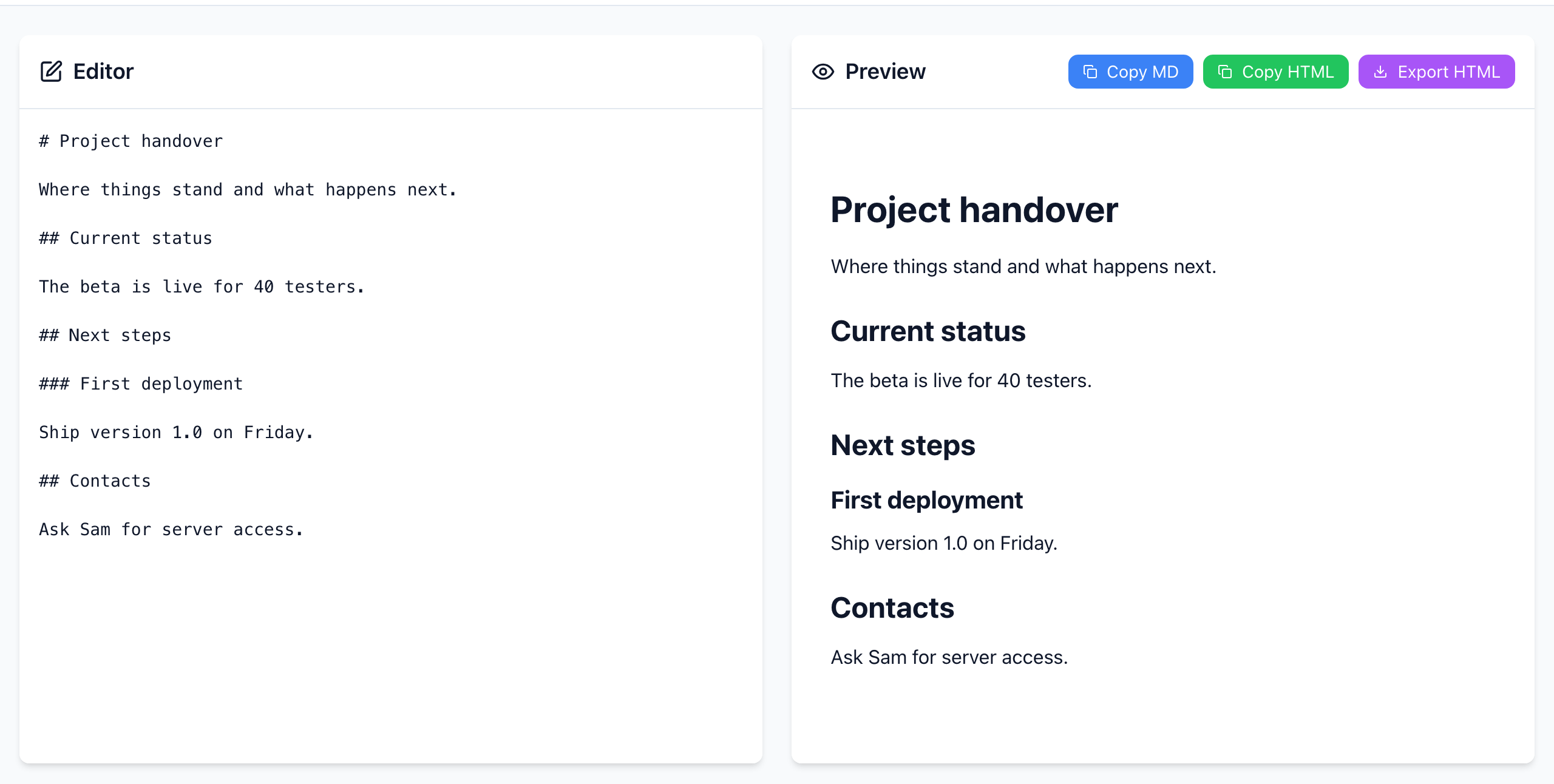
# title, ## sections, a ### subsection. Open the Markdown Editor.Build an outline
- Paste this into the Editor:
# Project handover

Where things stand and what happens next.

## Current status

The beta is live for 40 testers.

## Next steps

### First deployment

Ship version 1.0 on Friday.

## Contacts

Ask Sam for server access.
- Look at the Preview. “First deployment” is smaller than “Next steps” because it is part of that section, not a separate one.
- Read only the headings, top to bottom. If they tell you what the document covers and in what order, the outline works.
To add a heading while typing, click the H icon in the toolbar. It starts a new line with ## ; add or remove a # to change the level. Markdown has six levels, # to ######, but most documents need only three.
The missing space
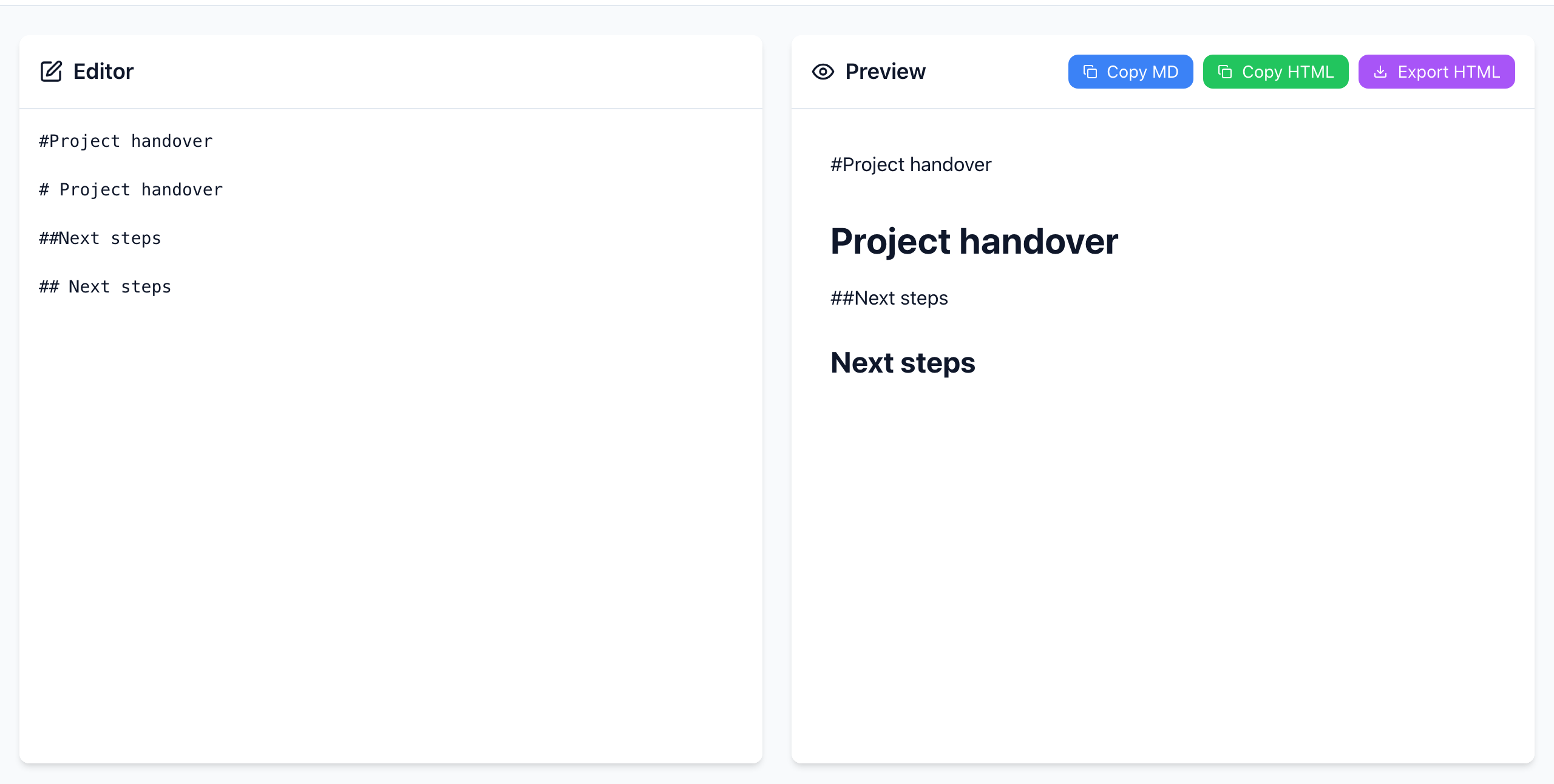
Most Markdown apps, including this preview, treat #Project handover as a normal sentence, so hashtags at the start of a line don't turn into headings by accident. If a heading isn't showing up, check for that space first.
Three rules for a clean outline
- One
#per document. It is the title. If the destination already shows its own title (a blog post, a wiki page, a GitHub issue), start your body at##. - Don't skip levels. Go from
##to###, not straight to####. Screen readers and generated tables of contents use these levels to show structure. - Put text under each heading. A run of headings with nothing between them reads like a table of contents, not a document. Leave a blank line before and after each heading to keep the source easy to edit.
If it doesn't work
- The hash marks show in the destination: that app doesn't read Markdown. Use its own heading menu, or copy the formatted text from the Preview panel.
- A heading swallowed the next line: a heading is only one line. Put the paragraph on the next line, ideally after a blank line.
- Heading sizes look different elsewhere: each site styles headings its own way. The levels carry over, the exact sizes don't.
The preview is rendered in your browser and your text is not uploaded. Open the free Markdown Editor.