The quality slider controls the encoder's quality setting for formats such as JPEG and WebP. Lower settings often reduce file size but may discard visible detail; the result depends on the image and browser encoder.
See how quality changes the output
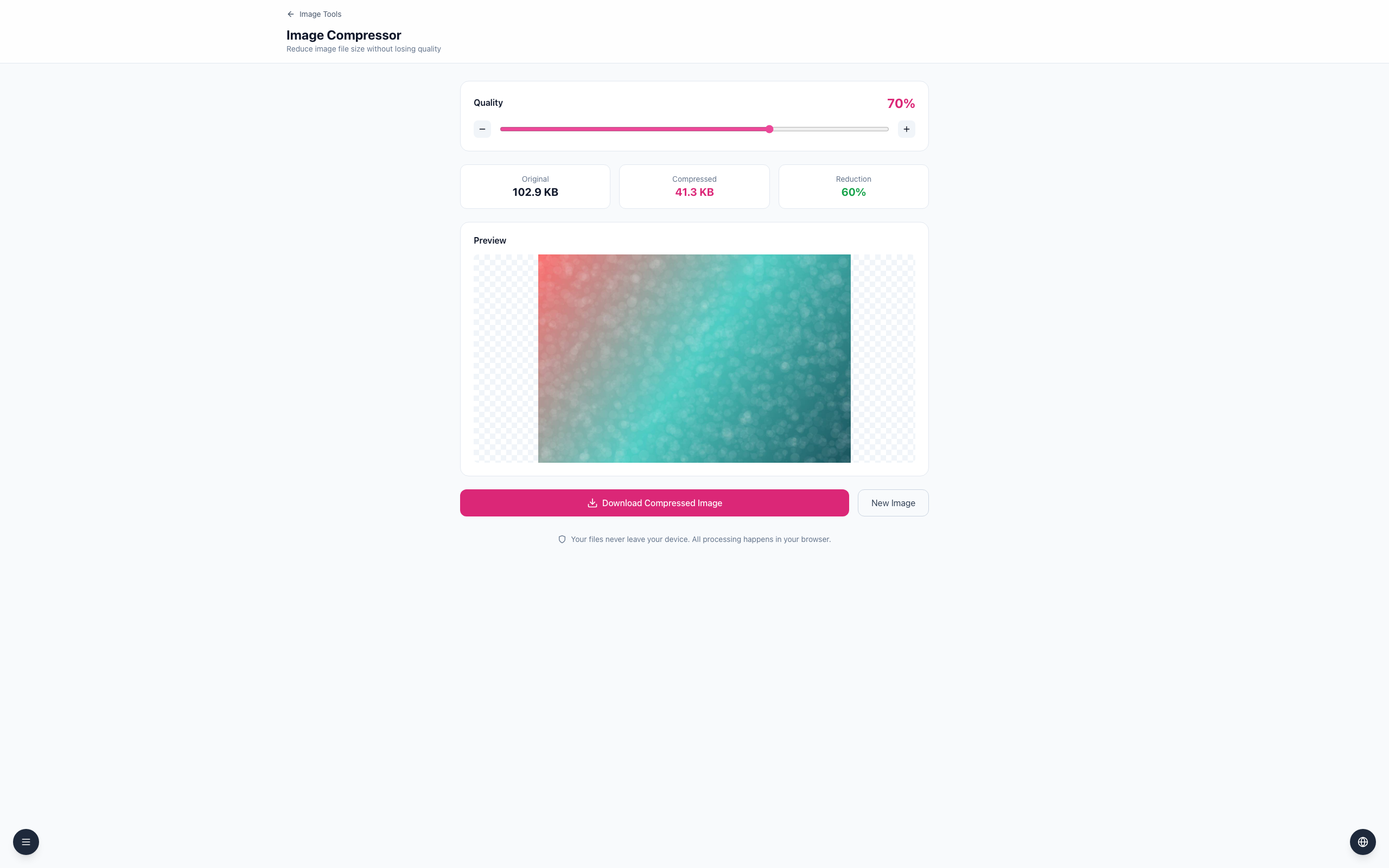
Open the Image Compressor, then upload a JPEG. The example uses a 1200 × 800 gradient JPEG shown as Original 102.9 KB.
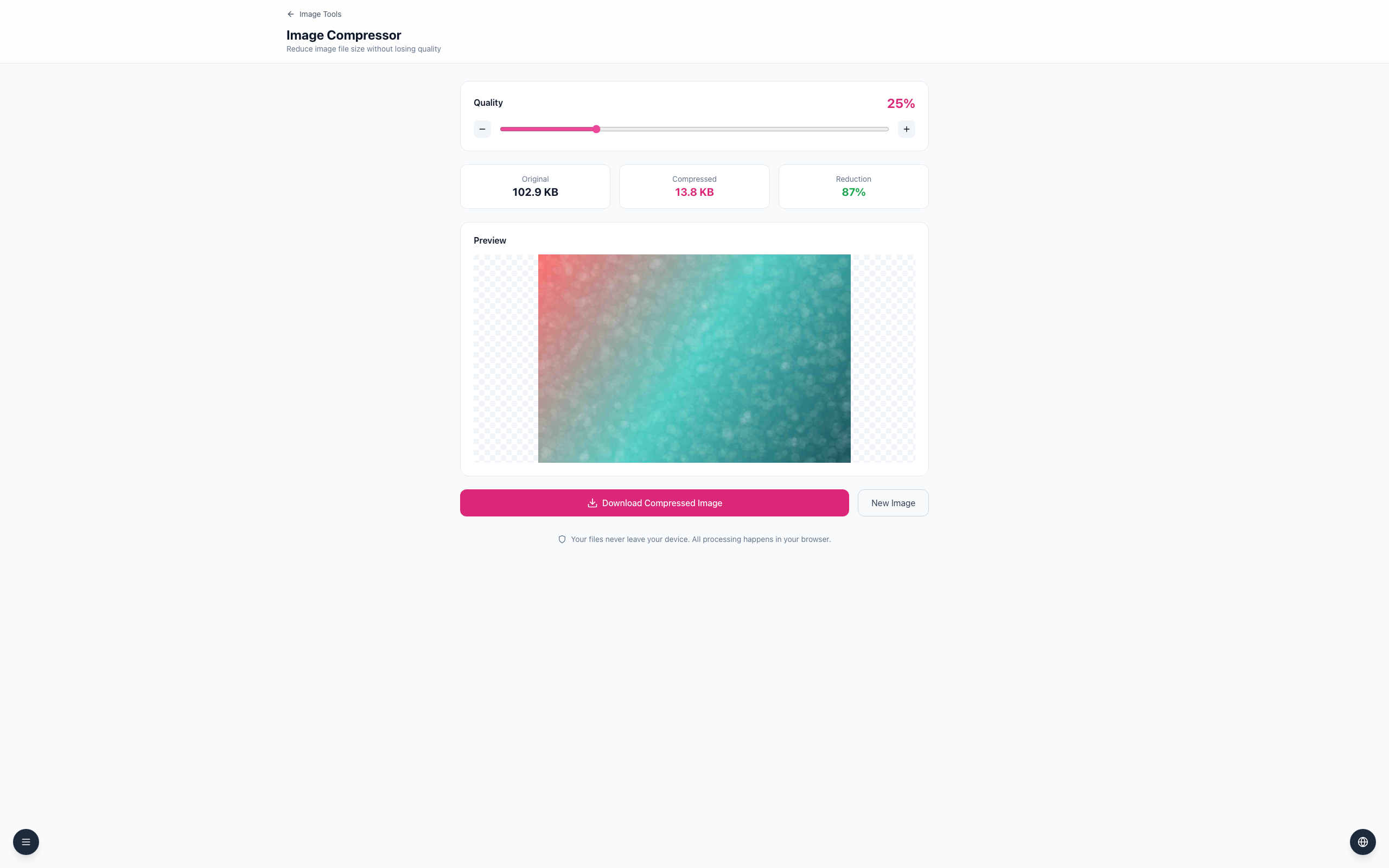
Note the compressed size at Quality 70%: Compressed 41.3 KB (Reduction 60%). Move the slider lower and wait for the updated size — at 25% it reads Compressed 13.8 KB (Reduction 87%).
Compare the preview and downloaded result before selecting Download Compressed Image.
The percentage is an encoder setting, not a guarantee that the file will be that percentage of its original size. For PNG, browsers generally ignore the lossy quality argument, so changes may not have the same effect.
If it doesn't work
If size barely changes, try a JPEG or WebP example and compare actual bytes.
If fine details look blurry, increase quality or use the original.
Wait for processing to finish before comparing sizes.