Find a Literal Dot, Dollar Sign or Bracket in Text
To replace a period, dollar sign or bracket exactly as typed, leave Regular Expression off. In that mode TheDailyUtils escapes special characters for you, so . means a real dot. Turn regex on and the same dot means “any character”, and it will match letters and digits too.
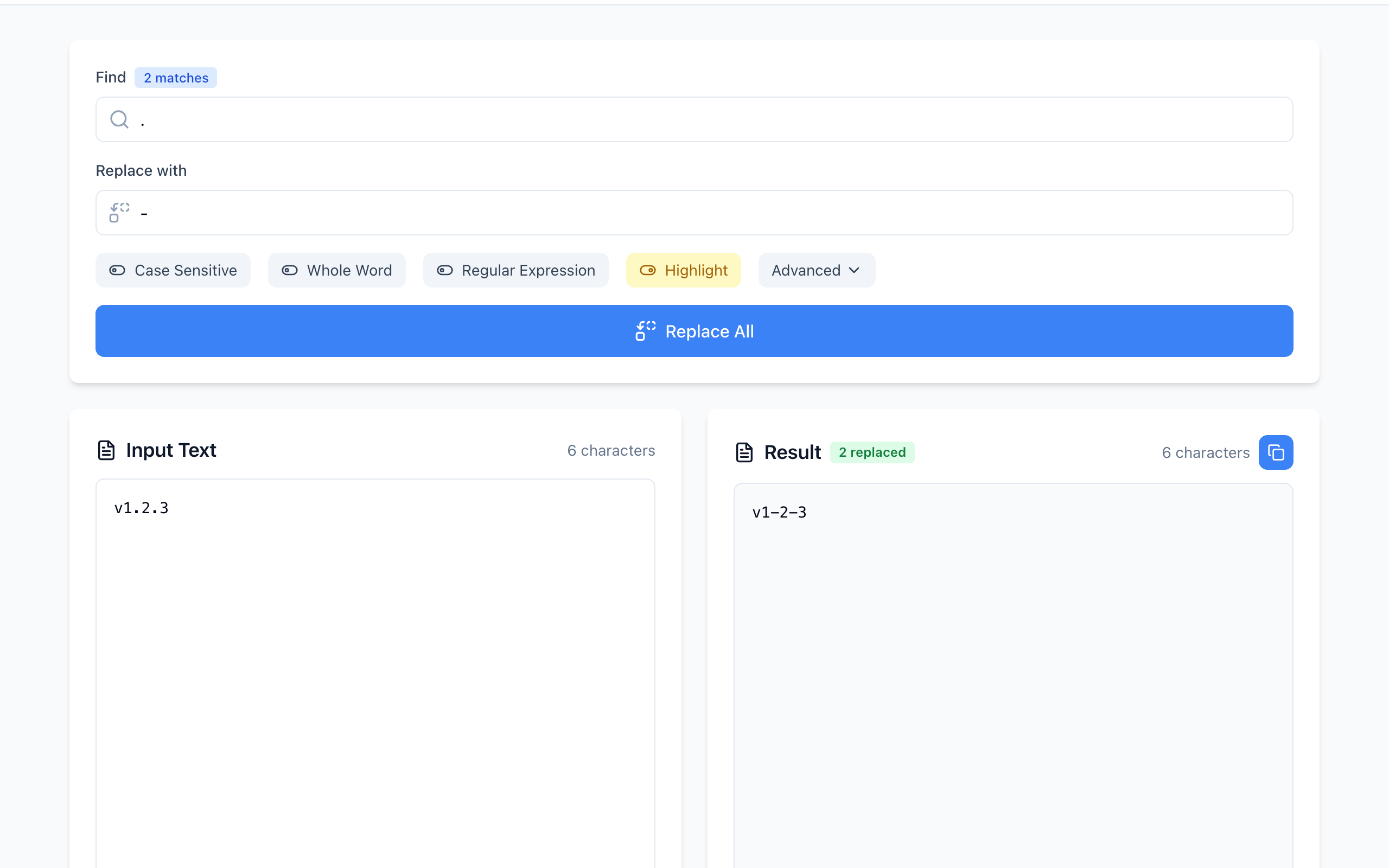
. matched only the two dots. Open Find & Replace.Replace the dots in a version number
- Paste
v1.2.3into Input Text. - Type
.in Find and-in Replace with. Make sure Regular Expression is grey (off). The badge shows 2 matches. - Click Replace All. The Result shows
v1-2-3and 2 replaced.
The same search with regex on
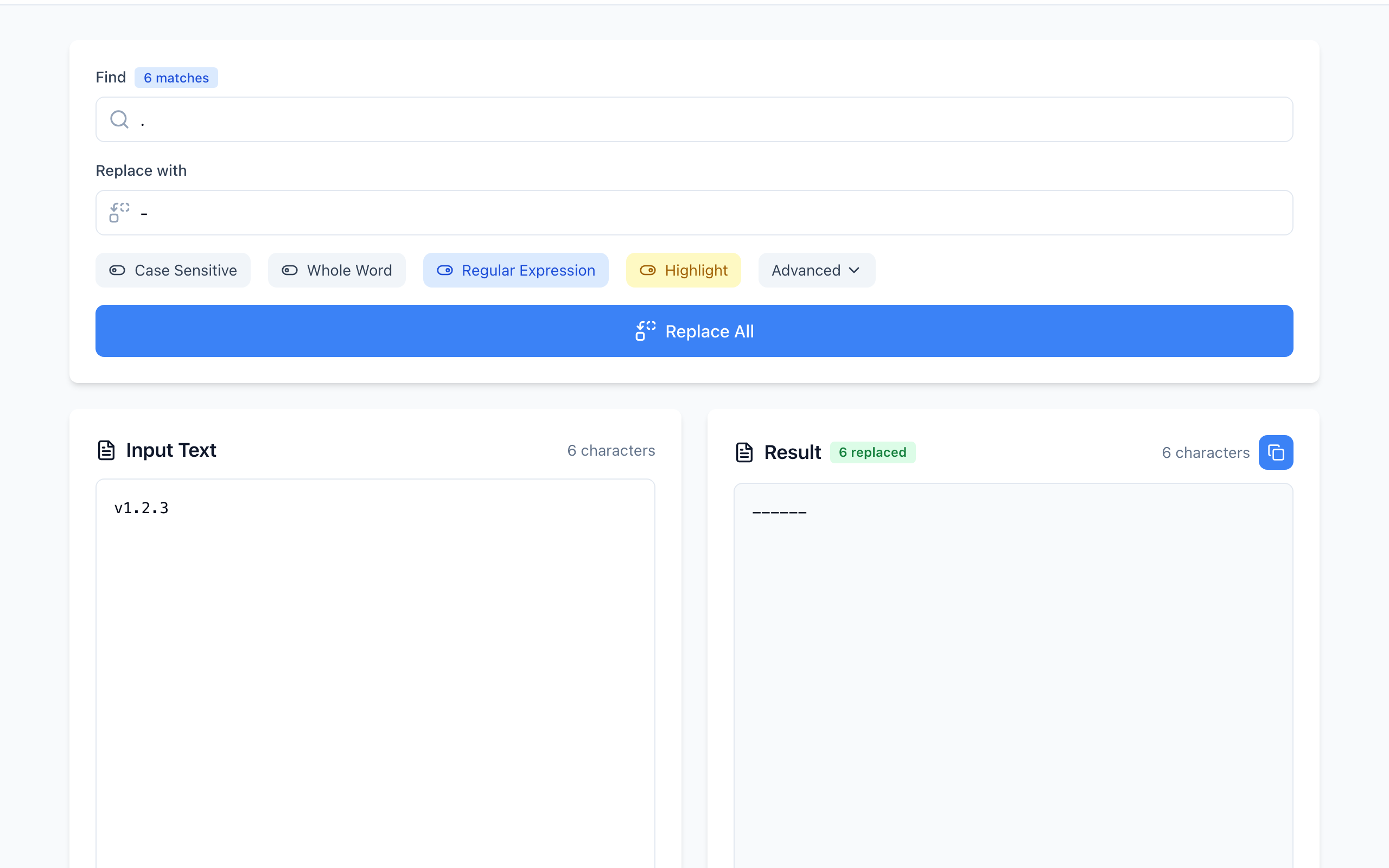
------.In regex mode you write the pattern yourself. To match a real dot there, escape it: \. gives v1-2-3 again. The same applies to [ ] ( ) + * ? ^ $ { } | and the backslash.
Brackets are a common surprise. In literal mode, finding [draft] in [draft] notes [draft] and replacing it with (final) gives (final) notes (final). In regex mode, [draft] means “any one of the letters d, r, a, f, t”, so it replaces single letters all over the text.
Dollar signs in the replacement box
The replacement text has its own rule. With Replace All, the tool uses the browser's standard replace, where $& inserts the matched text and $$ becomes a single $. This happens even when Regular Expression is off.
Input:        Price: 5
Find:         5
Replace with: $&0
Result:       Price: 50
If you need a literal $& in the output, type $$&. The First Only mode under Advanced inserts the replacement text exactly as typed, so the two modes can give different results for the same $ text. Test on one line first.
If it doesn't work
- Every character was replaced: Regular Expression is on. Turn it off, or escape the character with a backslash.
- “Invalid regular expression”: a lone
(or[in regex mode. Escape it or switch regex off. - Nothing matched around punctuation: turn Whole Word off. Word boundaries are defined by letters and digits, so they rarely sit next to a lone dot the way you expect.
- A missing or doubled $ in the output: see the replacement rules above.
Keep the original text until you have checked the result. Open the free Find & Replace tool.