Duplicate Lines Still Remain? Check Spaces and Case
Two lines can look the same while containing different text. Capitalization, leading or trailing spaces and repeated internal spaces are the usual reasons a duplicate remover leaves both rows in place.
Identify the difference first
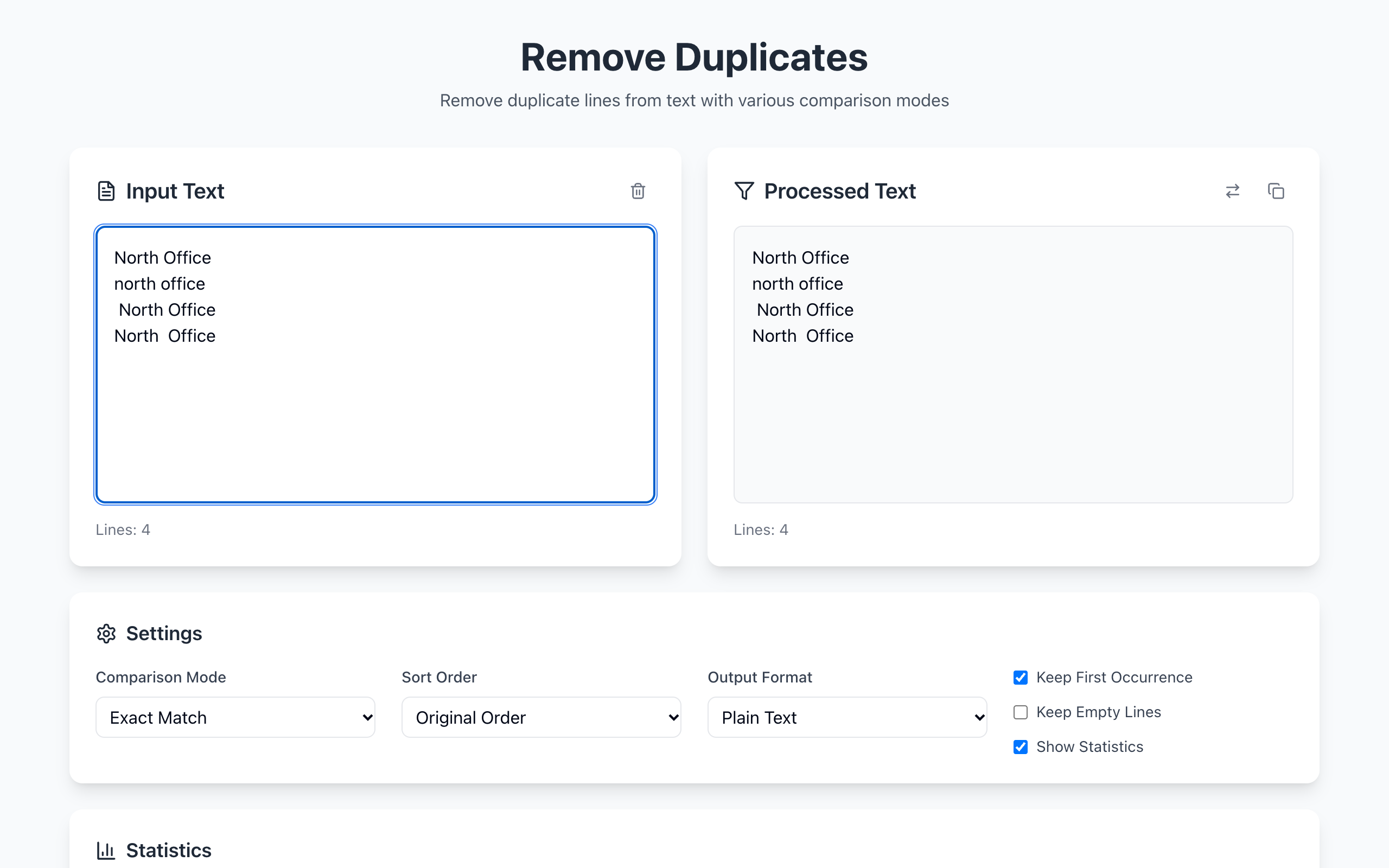
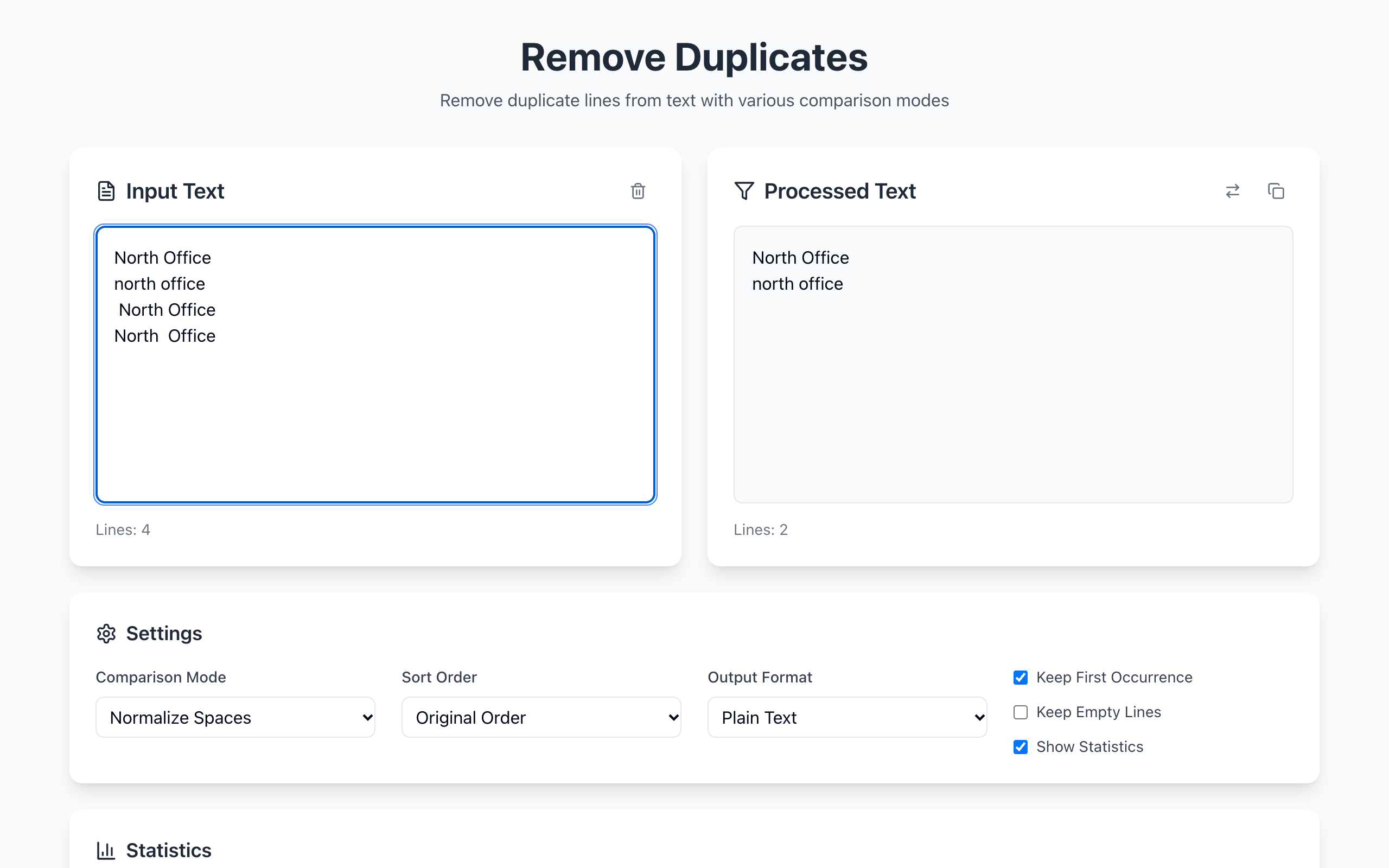
North Officeandnorth officediffer by case. Use Case Insensitive.North OfficeandNorth Officediffer at the edges. Use Trim Whitespace.North OfficeandNorth Officehave a different number of spaces between words. Use Normalize Spaces, which collapses runs of whitespace and trims the edges.
Each mode applies one rule. Case Insensitive does not trim spaces, and Normalize Spaces does not ignore case. If your list has both problems, run one pass, press the Use output as input button, then run the second mode.
Hidden characters from copied files
Text copied from a Windows file or a spreadsheet can carry an invisible carriage return at the end of each line. Two lines that look identical may then differ only by that character. Trim Whitespace and Normalize Spaces both remove it before comparing.
Test a representative sample
Put two ordinary duplicates, one capitalized variant and one spaced variant into a short list. Run your chosen mode and inspect the result. The tool compares normalized text, but the line it keeps is the original, with its own spelling and spacing.
Do not normalize meaningful differences away
Part numbers and case-sensitive identifiers may depend on uppercase versus lowercase. Alphanumeric Only also strips punctuation and non-English letters, so A-100 and A100 become the same key. Start with the narrowest rule that solves your list, then check the removed examples before using the cleaned output.