Crop when the image has the wrong shape; resize when it only has the wrong number of pixels. Cropping throws away part of the picture. Resizing keeps the whole picture and changes its pixel dimensions. If both are wrong, crop first, then resize.
Crop to the right shape, then resize
The example is a 1200 × 800 image (3:2) that must become a 960 × 540 header (16:9). The ratios differ, so the image needs a crop before it can be resized without stretching.
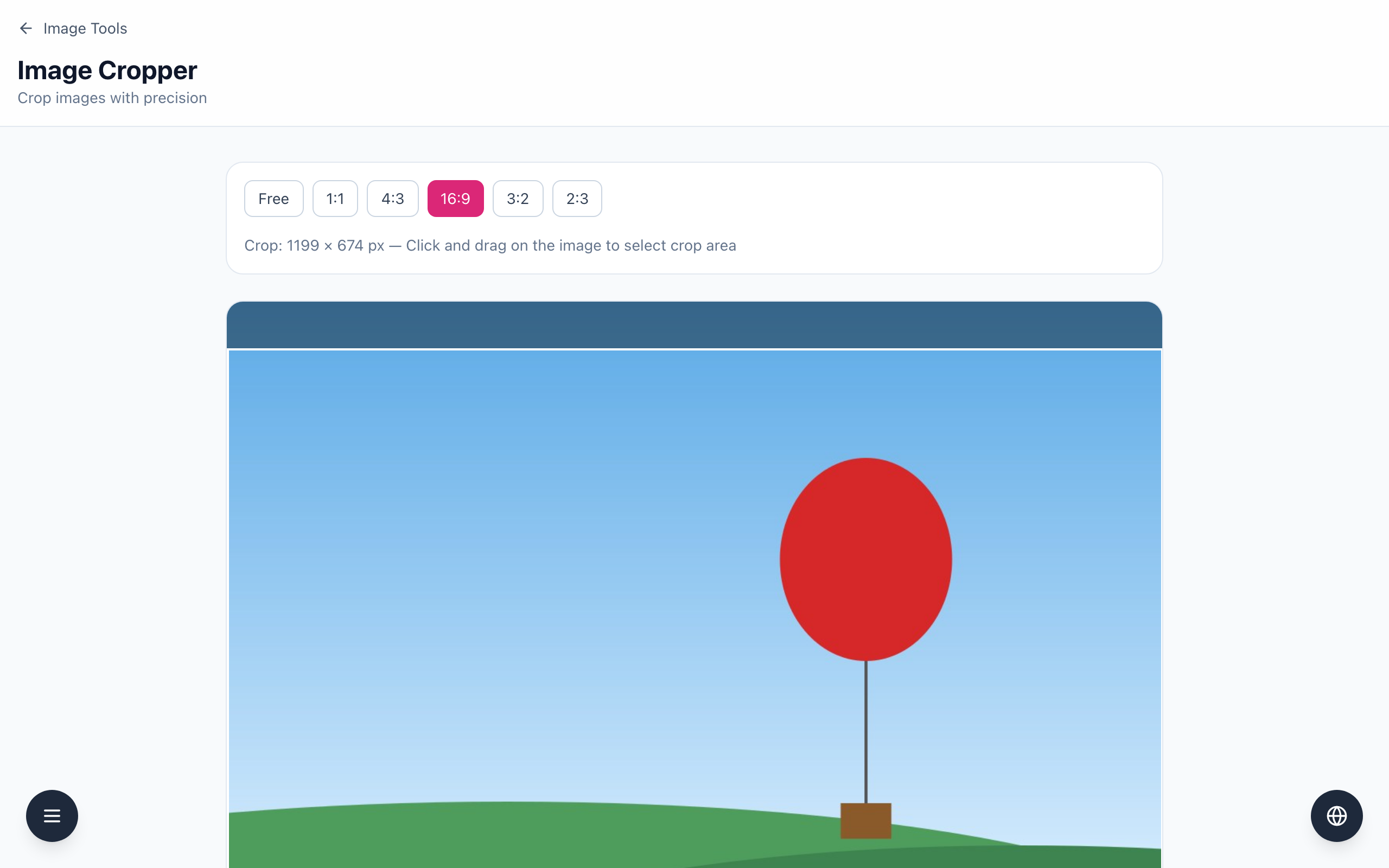
Open the Image Cropper, drop in the image and click 16:9.
Drag a frame from the left edge to the right edge of the image. The label reads Crop: 1199 × 674 px: the full width is kept, but part of the height is removed.
Click Crop Image, then Download Cropped Image. You get cropped_ plus the original file name.
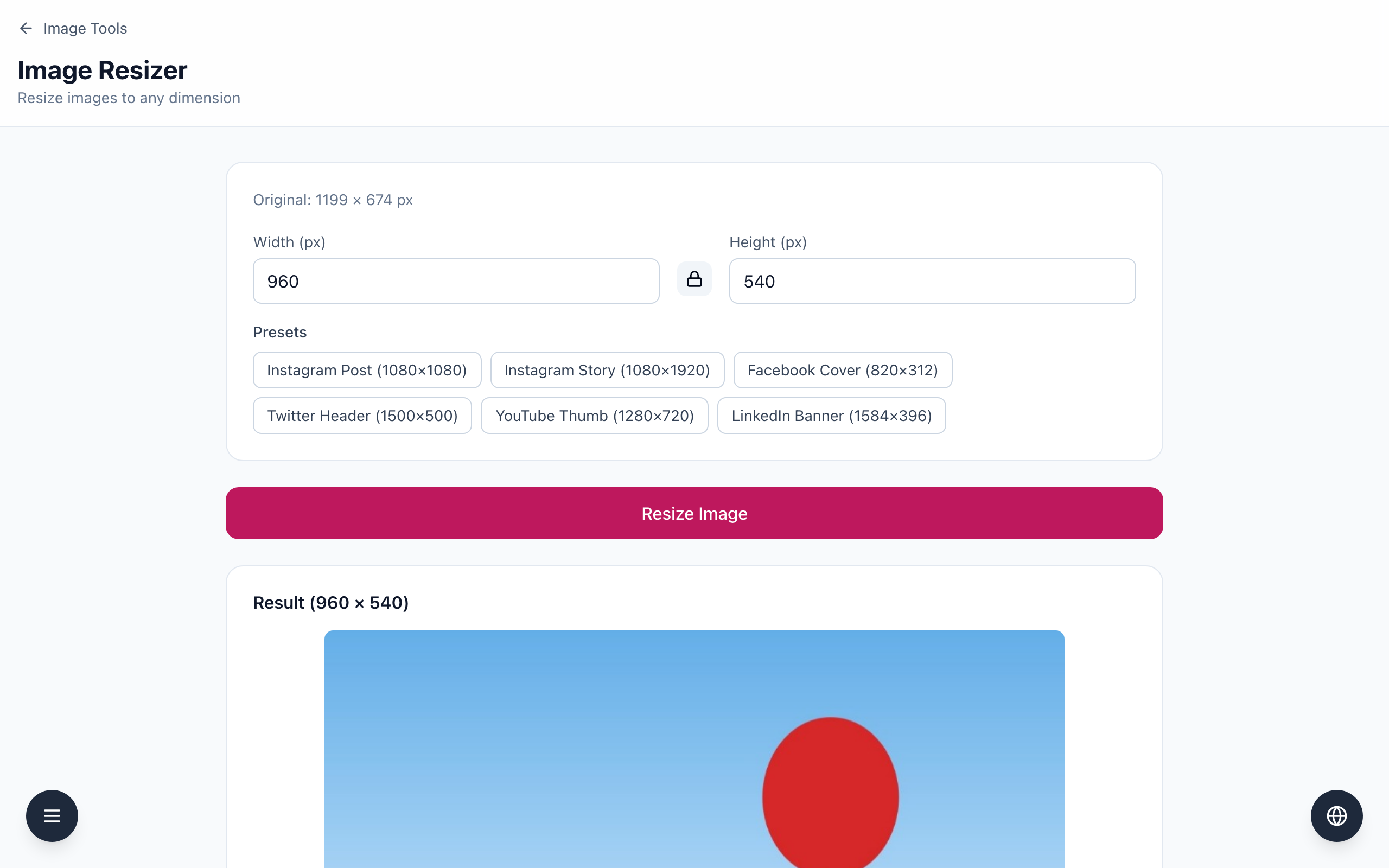
Open the Image Resizer and upload that file. It shows Original: 1199 × 674 px.
With the aspect ratio locked, type 960 in Width (px). Height (px) changes to 540.
Click Resize Image. The page shows Result (960 × 540); click Download Resized Image.
If the ratio already matches the target, skip the crop and only resize. If you resize without cropping when the ratios differ, you must unlock the aspect ratio, and the picture is stretched. Keep the untouched original, and check the final image in the destination, since a site may crop it again after upload.
If it doesn't work
If Height does not follow Width in the Image Resizer, make sure the aspect ratio is locked, then type the width again.
If the cropped image has a blank strip, the frame ran past the image edge. Draw it again inside the image.
If the result looks soft, the crop was enlarged. Resizing to a larger size cannot restore detail.