Pick the output format the destination accepts, convert a copy, and compare the two file sizes the tool shows. JPEG suits photos but has no transparency, PNG keeps transparency, and WebP is often smaller but not accepted everywhere.
Convert and compare
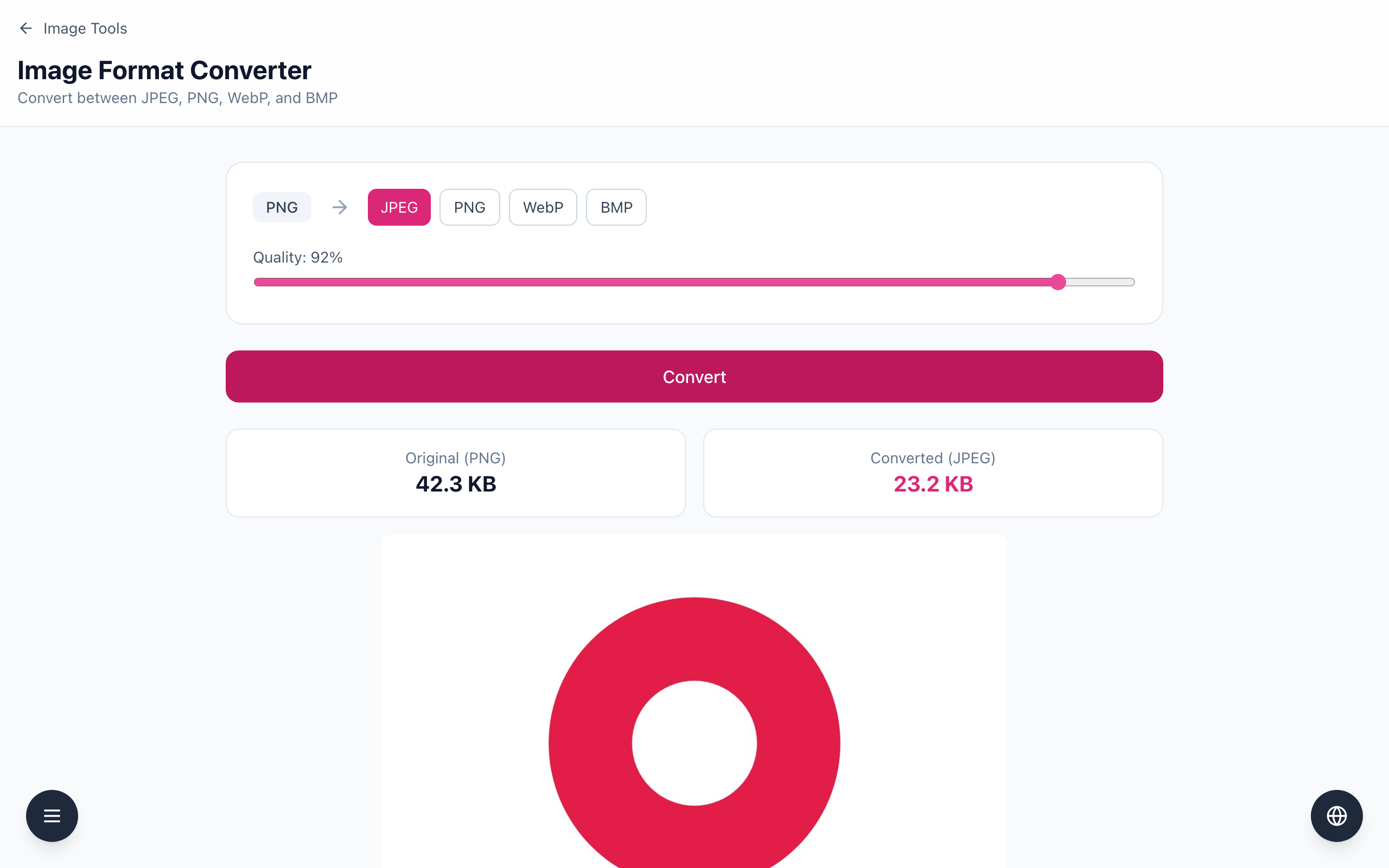
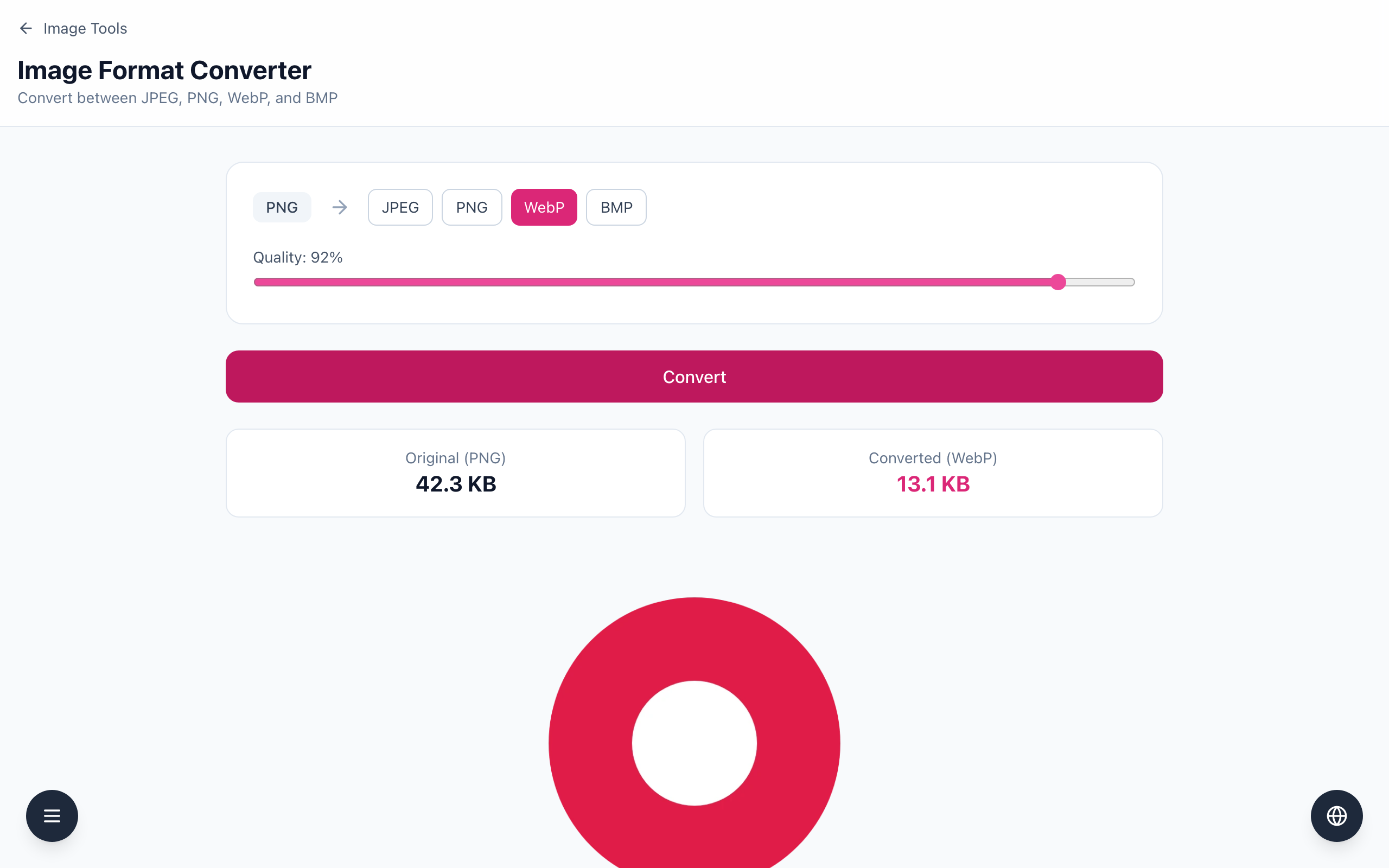
Open the Image Format Converter and drop in an image. The example is a 1200 × 800 PNG logo with a transparent background, shown as Original (PNG) 42.3 KB.
Click an output format: JPEG, PNG, WebP or BMP. For JPEG and WebP a Quality slider appears (default 92%).
Click Convert. With JPEG selected the page shows Converted (JPEG) 23.2 KB and a preview. Transparent areas are filled with white because JPEG cannot store transparency (BMP does the same).
Change the format, click Convert again and compare: WebP at Quality 92% gives Converted (WebP) 13.1 KB for this image. Choose Download to save the file with the new extension, or New Image to start over.
Sizes depend on the image: this one is a flat graphic, so photographs will give different numbers. Changing the format or Quality does not re-run the conversion by itself — click Convert each time. Keep the original; if you need several formats, convert from that original each time instead of converting one lossy copy into another.
If it doesn't work
If the destination rejects the file, check which formats it accepts — WebP is not accepted everywhere.
If a logo gets a white box behind it, JPEG and BMP cannot keep transparency; choose PNG or WebP.
If the size did not change after you picked a new format, click Convert again.