Compress an Image and Compare the Actual File Size
November 17, 20263 min read
Compare both file size and visible detail when compressing an image. A smaller file is useful only if the result still looks acceptable for its intended use.
Compare size and quality together
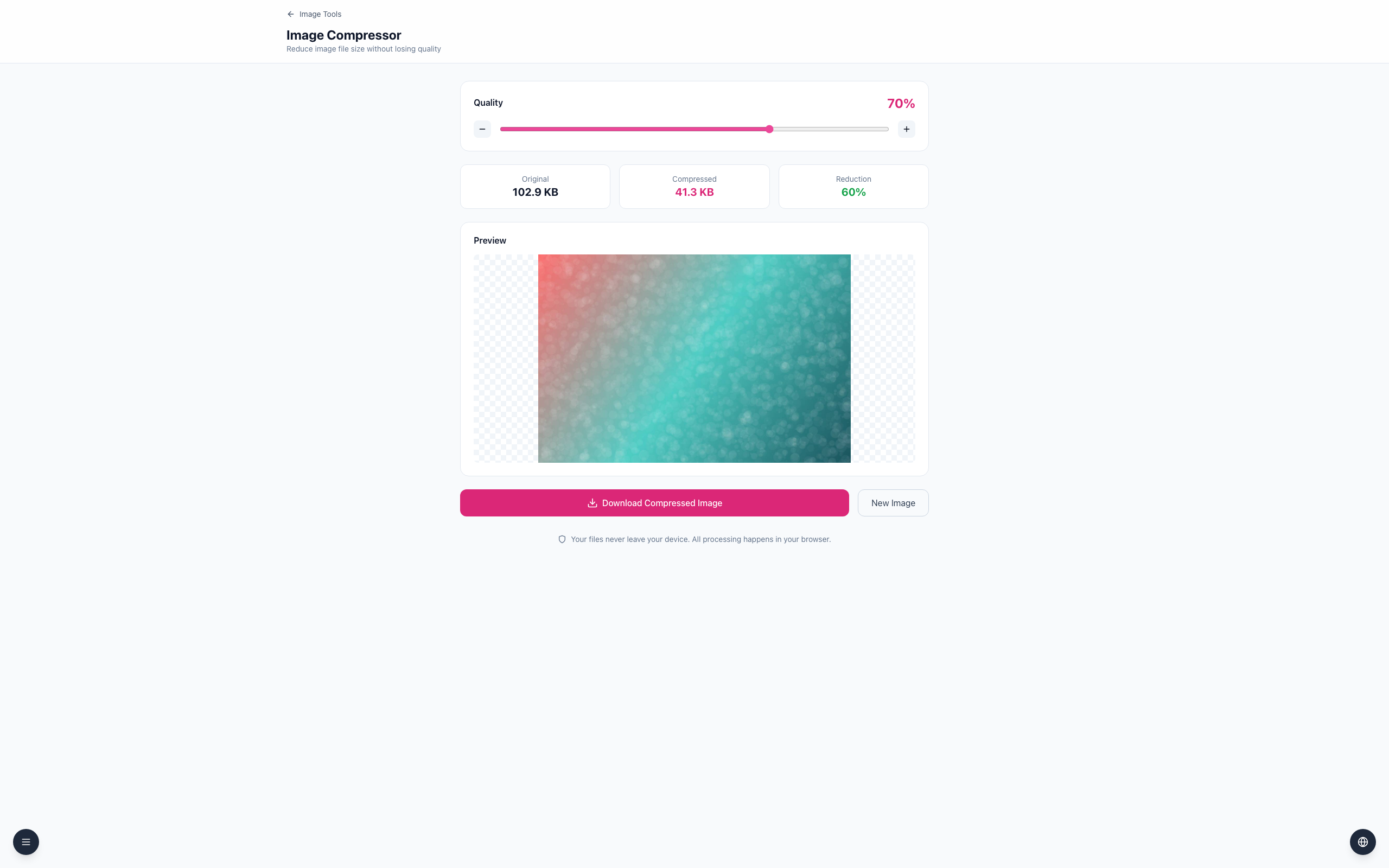
Open the Image Compressor and upload a JPEG. The example is a 1200 × 800 gradient JPEG shown as Original 102.9 KB.
At Quality 70%, the tool shows Compressed 41.3 KB and Reduction 60%. The tool processes the image automatically.
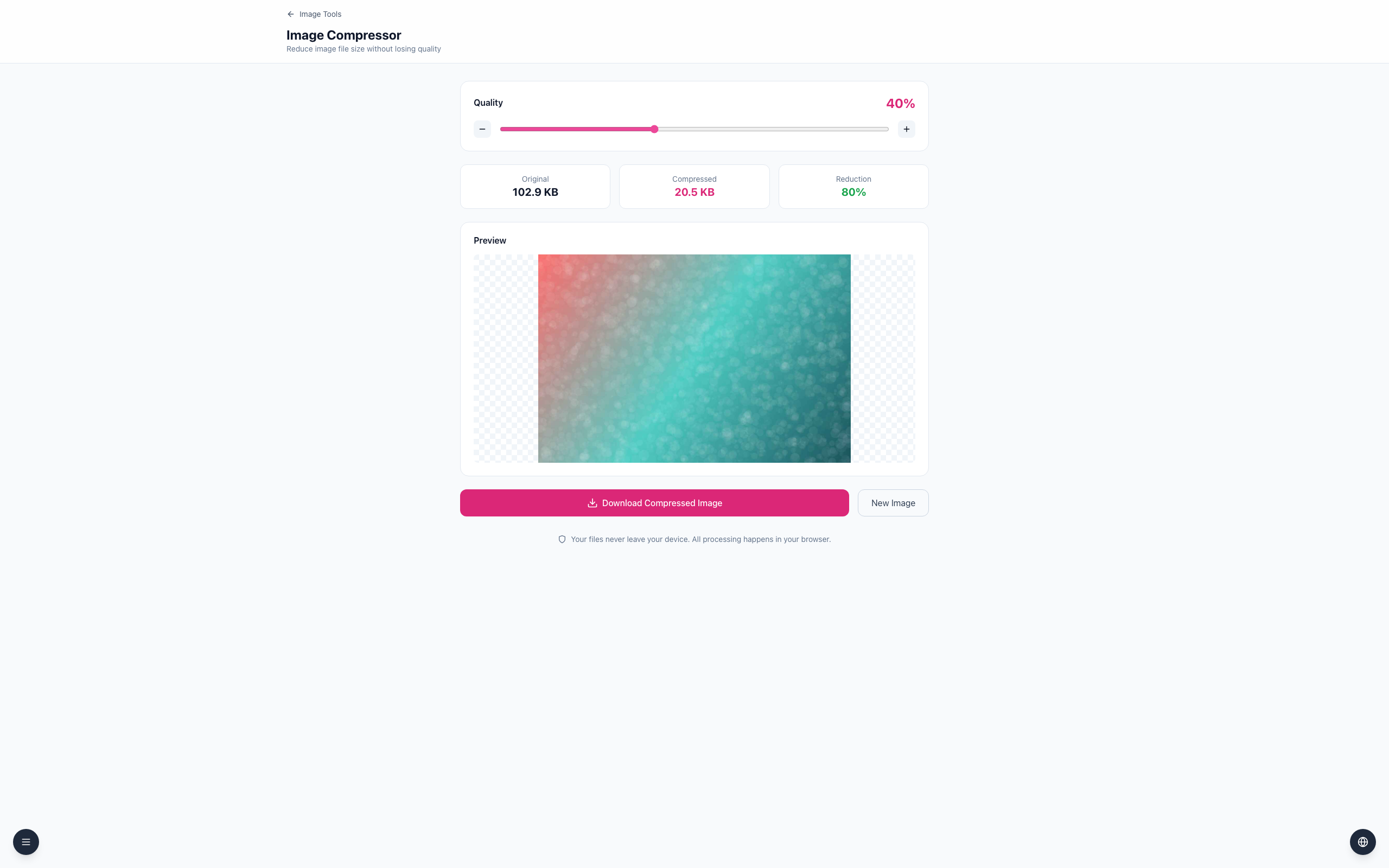
Move Quality lower and compare again — at 40% it drops to Compressed 20.5 KB (Reduction 80%); click Download Compressed Image when the balance is acceptable. Inspect the downloaded image at its intended display size.
Different images compress differently. Keep the original and compare a copy rather than repeatedly recompressing an already compressed file.
If it doesn't work
If the result is larger than the original, try another quality or keep the original.
Look for artifacts around sharp edges and fine detail.
PNG output may not respond to the quality slider the same way as JPEG or WebP.