Compare Two Versions of Text Before Sending an Update
Paste the earlier version on the left, the revision on the right, and set Diff Algorithm to Word by Word. For edited sentences that shows exactly which words were added or removed. The default Line by Line only tells you that the whole line changed.
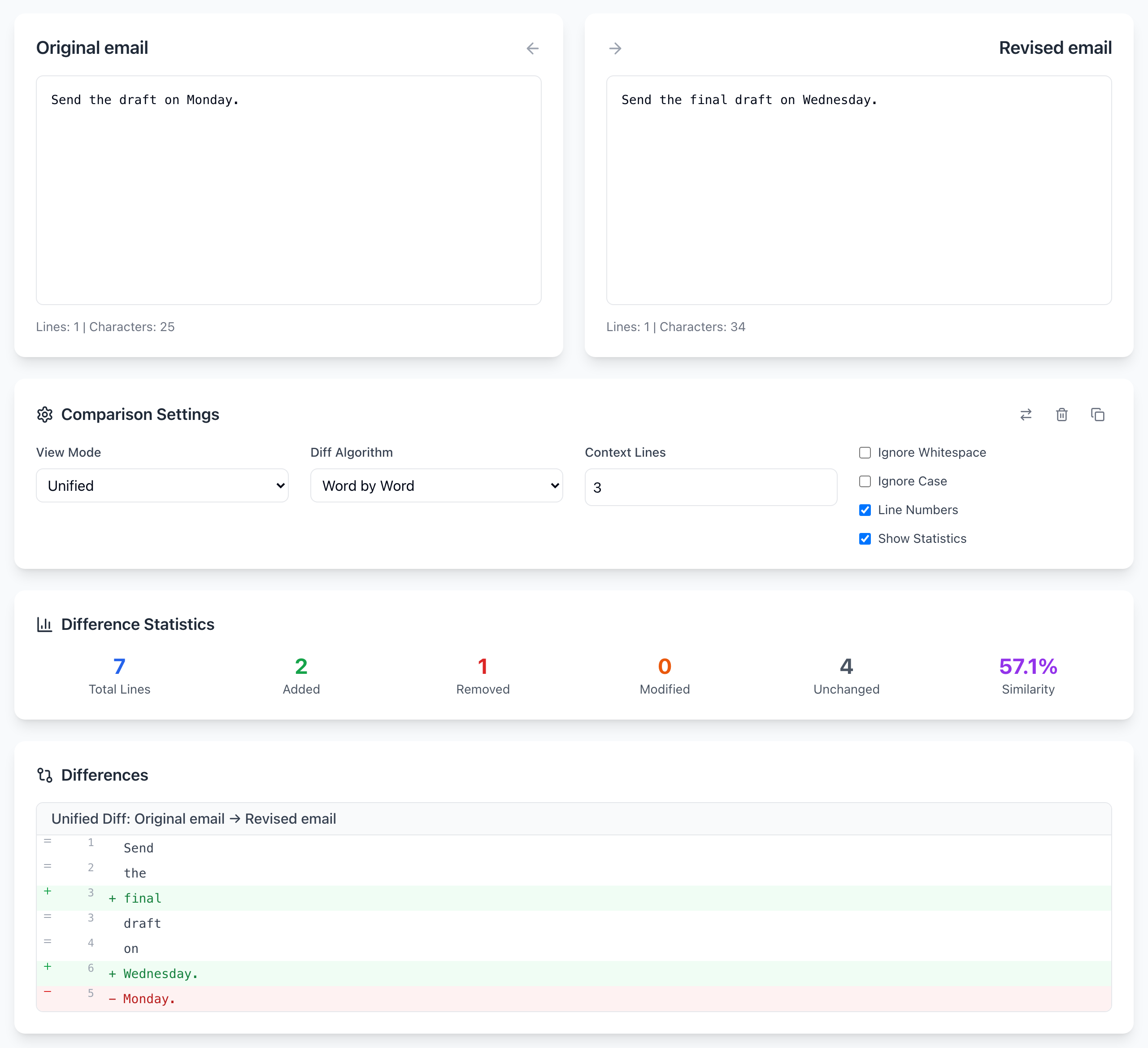
Try it with this sample
- Type
Original emailin the Original title box and pasteSend the draft on Monday.into the left text box. - Type
Revised emailin the Modified title box and pasteSend the final draft on Wednesday.on the right. - Under Comparison Settings, set View Mode to Unified and Diff Algorithm to Word by Word.
- Read the Differences list:
+ final,+ Wednesday.and- Monday.. The statistics show Added 2, Removed 1, Unchanged 4.
Two edits, not one: the deliverable changed to a final draft and the day changed. If you only looked for the new date, you would miss the first.
Why Line by Line isn't enough here
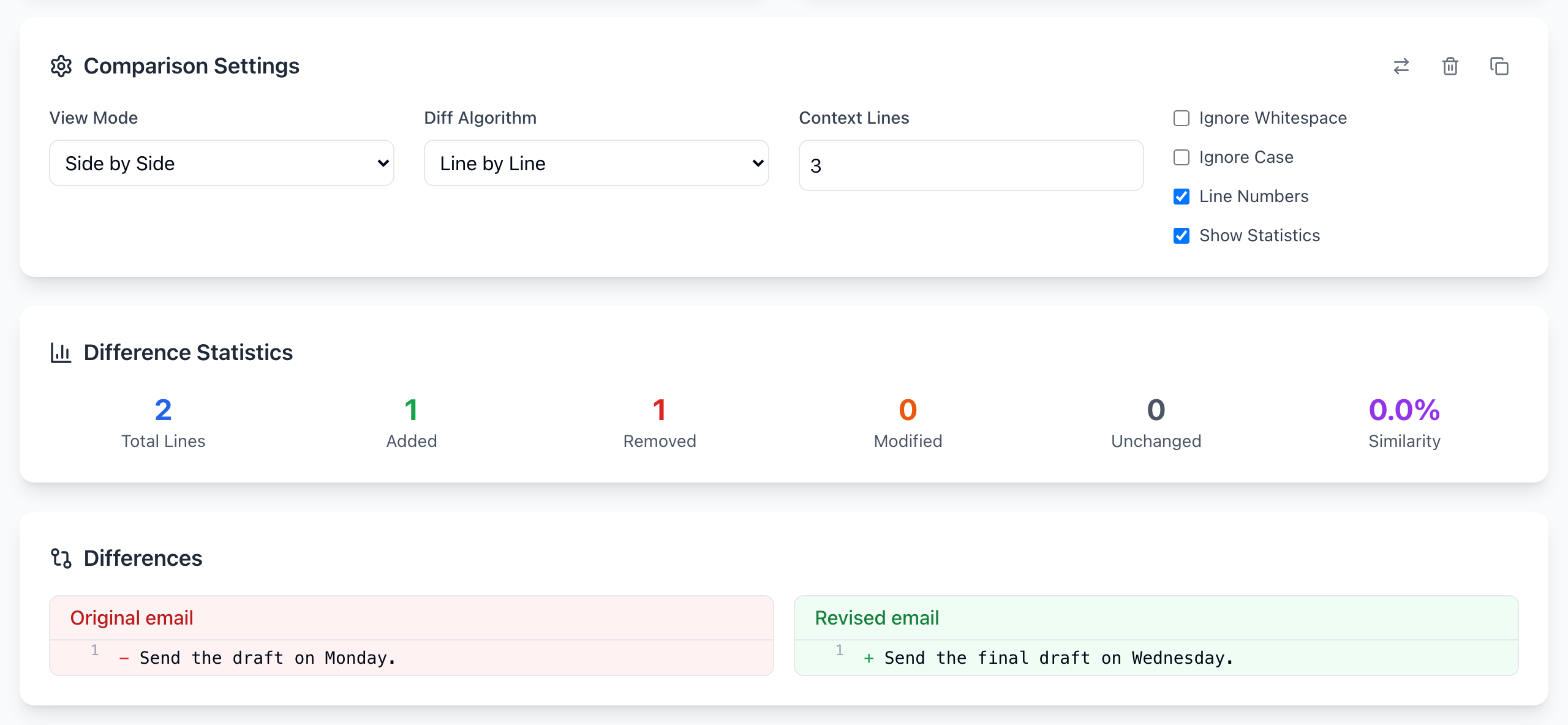
Line by Line is right for lists, settings files and code, where each line is one unit. For prose, one changed word marks the whole line, so use Word by Word. Punctuation sticks to the word in that mode, which is why it shows Monday. with the period.
Spot a changed number
For figures, switch to Character by Character. Comparing Total: $1,250 with Total: $1,520 shows a 5 added before the 2 and a 5 removed after it: two digits swapped places. Character mode gets noisy on rewritten paragraphs, so use it on short strings.
Before you send
- Read the revised text on its own, without the highlights. One added “not” can flip a sentence while the diff looks small.
- Check names, dates, amounts and links in context.
- Copy the final text from the right-hand box, not from the diff. The copy icon in Comparison Settings copies the diff with
[+]/[-]or+/-markers, which is useful for sharing the changes, not for sending.
If it doesn't work
- Additions and removals are reversed: the versions are on the wrong sides. Click the swap icon at the top right of Comparison Settings.
- Long document, too many highlights: compare one section at a time.
- Only spacing or line breaks changed: tick Ignore Whitespace, or use Word by Word, which ignores where lines break.
The comparison runs in your browser and the text is not uploaded. The tool does keep your last 20 comparisons in this browser’s History panel; click the trash icon there after comparing anything private. Open the free Text Diff tool.