Find Added and Removed Items Between Two Lists
Put one item on each line, paste the old list on the left and the new list on the right, and keep Diff Algorithm on Line by Line. Lines marked - are in the old list only (removed), and lines marked + are in the new list only (added). Unmarked lines are in both.
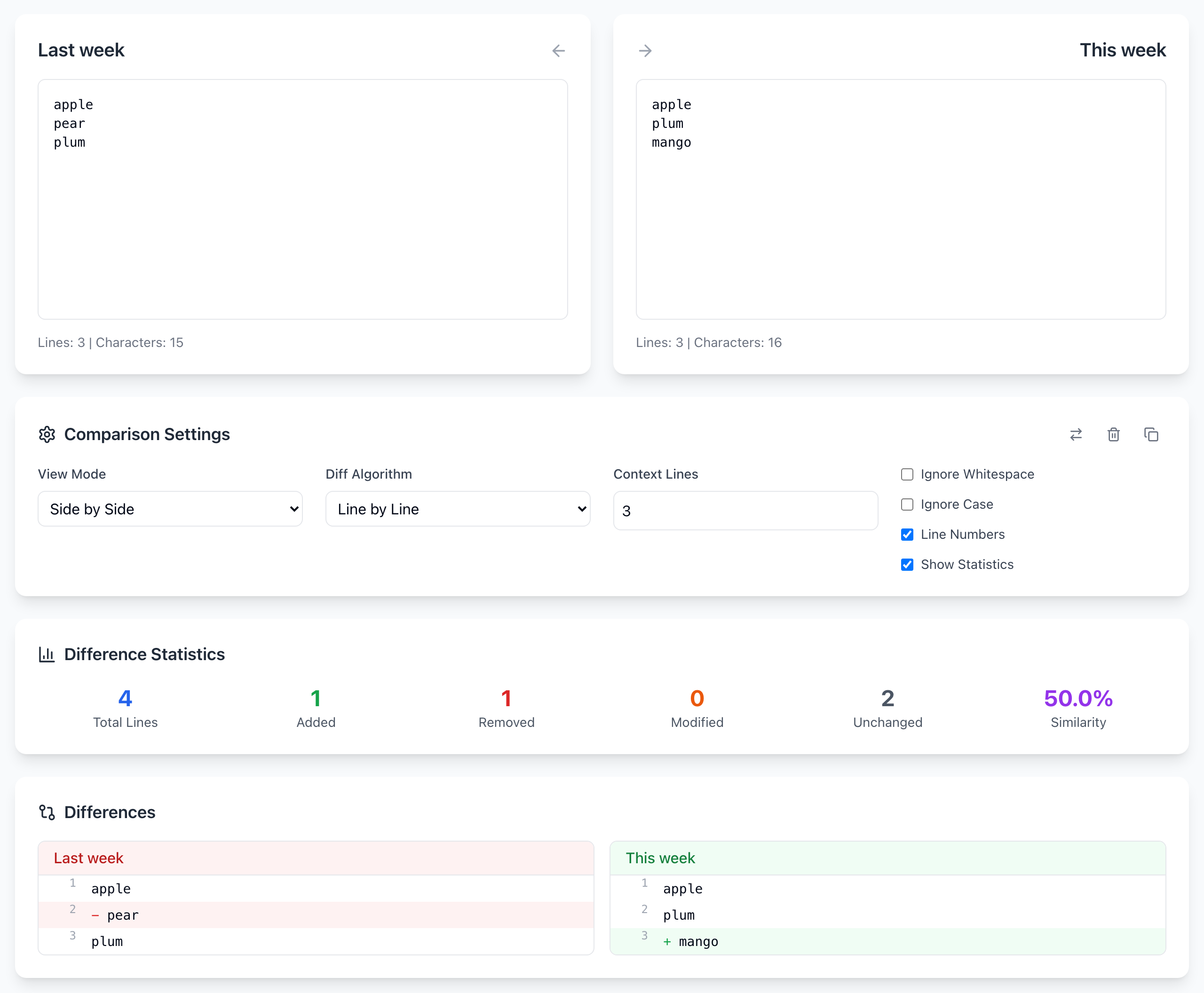
pear removed, mango added. Open the Text Diff tool.Try it with this sample
- Type
Last weekin the Original title box and paste this list below it:apple pear plum
- Type
This weekin the Modified title box and paste:apple plum mango
- Leave View Mode on Side by Side. The result updates by itself: Added 1, Removed 1, Unchanged 2. The left column shows
- pearin red, the right column shows+ mangoin green.
If additions and removals look backwards, the lists are on the wrong sides. Click the swap icon (two arrows) at the top right of Comparison Settings.
Get the changes as plain text
Click the copy icon next to the swap icon. In Side by Side view the clipboard gets one line per item, with a marker in front:
[ ] apple
[-] pear
[ ] plum
[+] mango
Paste that into a note or spreadsheet and filter for [+] or [-] to get just the new or just the missing items. In Unified view the copy uses + and - prefixes instead.
A moved item counts as removed and added
The comparison keeps order. If an item only changed position, it still shows up twice. Here plum moved from last to first:
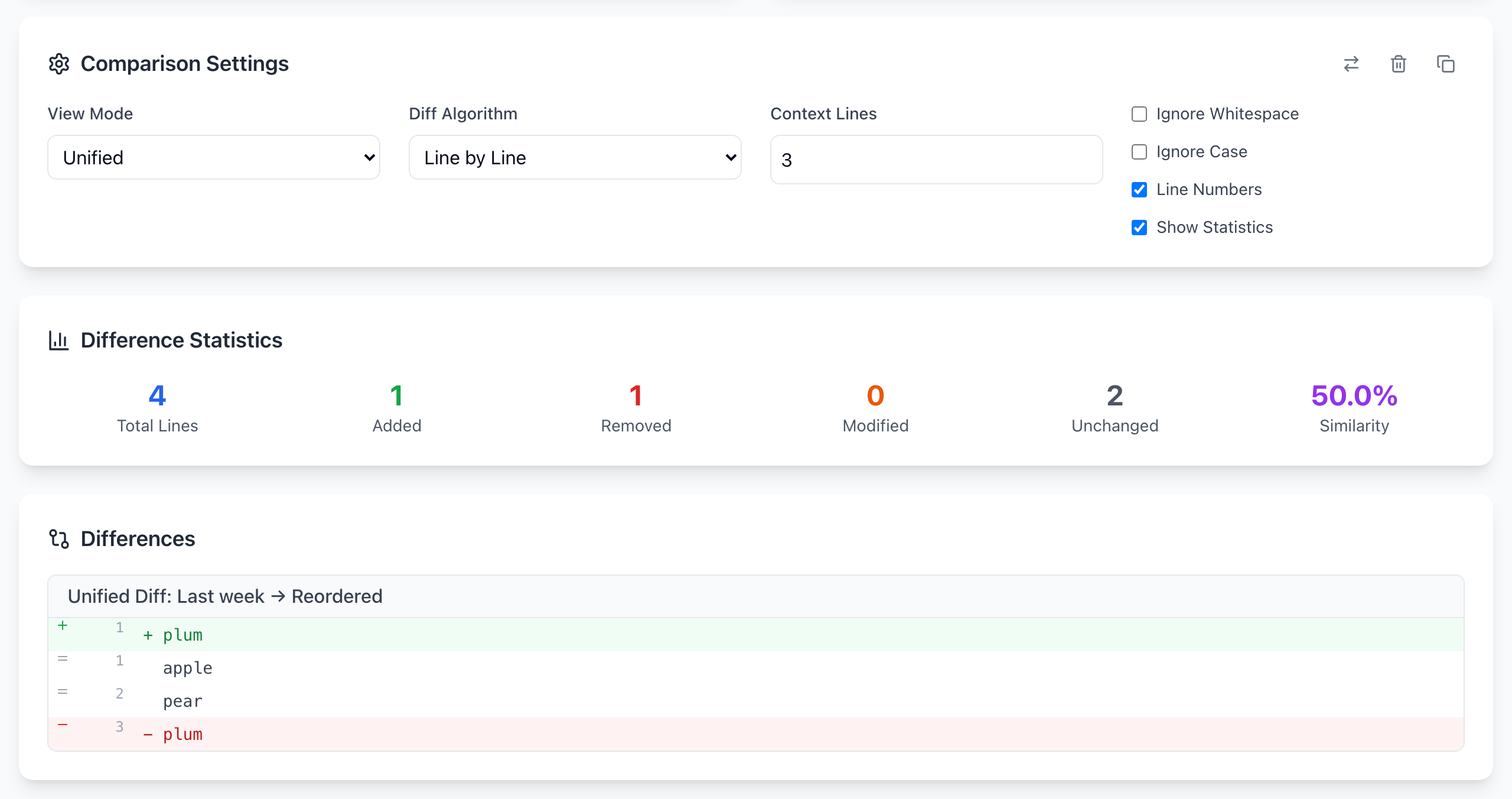
plum is marked both + and -.When order doesn’t matter (a guest list, a set of tags), sort both lists alphabetically in a spreadsheet or editor first, then compare. When order does matter (a ranking, a playlist), a -/+ pair with the same text means “moved”, not “new”.
Duplicates and near-matches
- Case:
AcmeandACMEare different lines. Tick Ignore Case if capitalization doesn’t matter for this list. - Stray spaces:
plumwith a trailing space does not matchplum. Ignore Whitespace ignores spaces at the start and end of each line and treats runs of spaces as one. - Duplicates: an item listed twice in the new list is compared as two lines, so the second copy shows as added. If you only care about unique values, clean each list with Remove Duplicates first, and keep the originals.
If it doesn't work
- An empty added or removed line: one list ends with an extra line break. Delete the blank last line.
- Everything is marked changed: one list is comma-separated or on a single line. Put each item on its own line.
- Rows with several columns: a changed email in a customer row makes the whole row look removed and re-added. For records, compare by an ID column in a spreadsheet instead.
The comparison runs in your browser and the text is not uploaded. The tool does keep your last 20 comparisons in this browser’s History panel; click the trash icon there after comparing anything private. Open the free Text Diff tool.