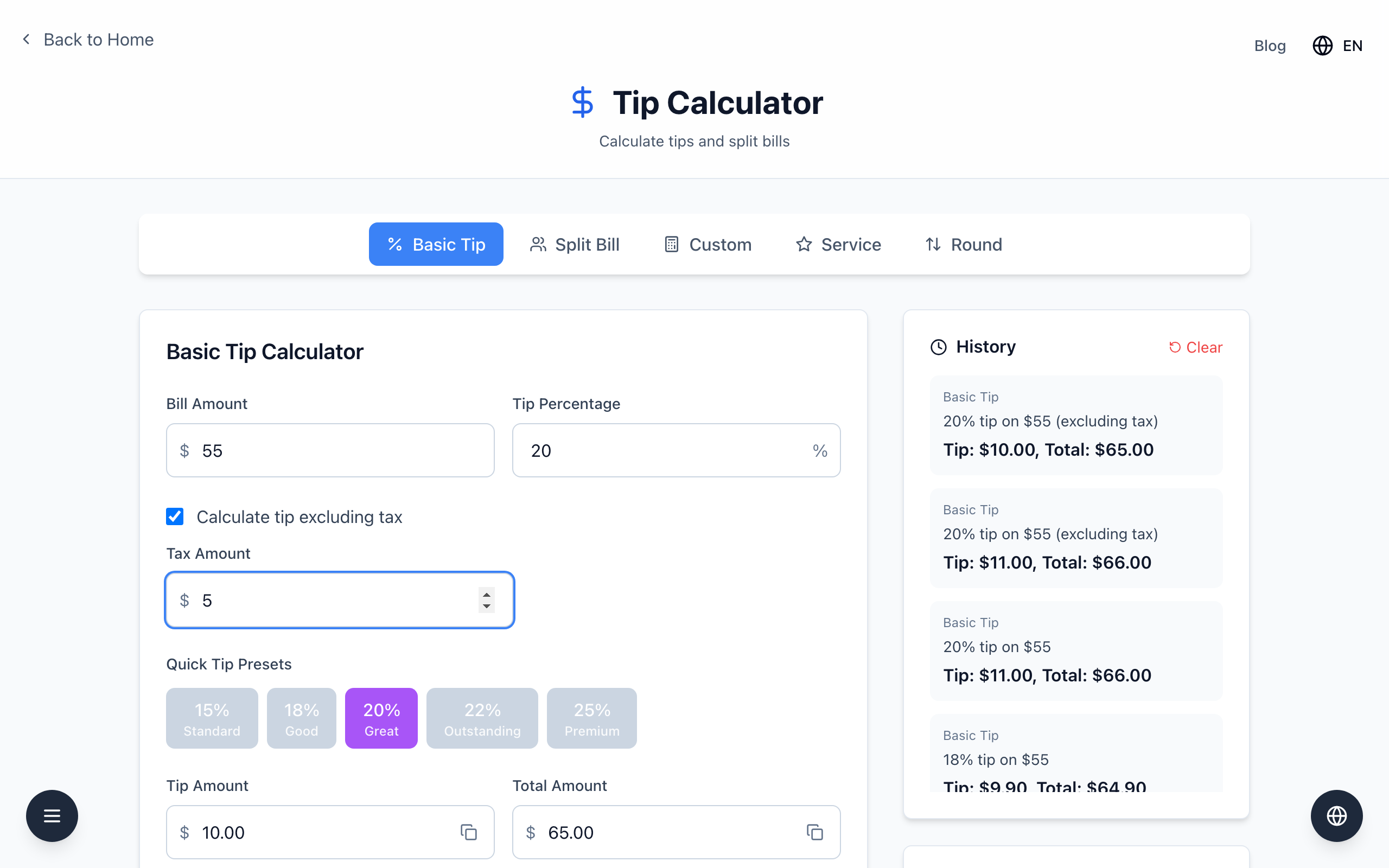
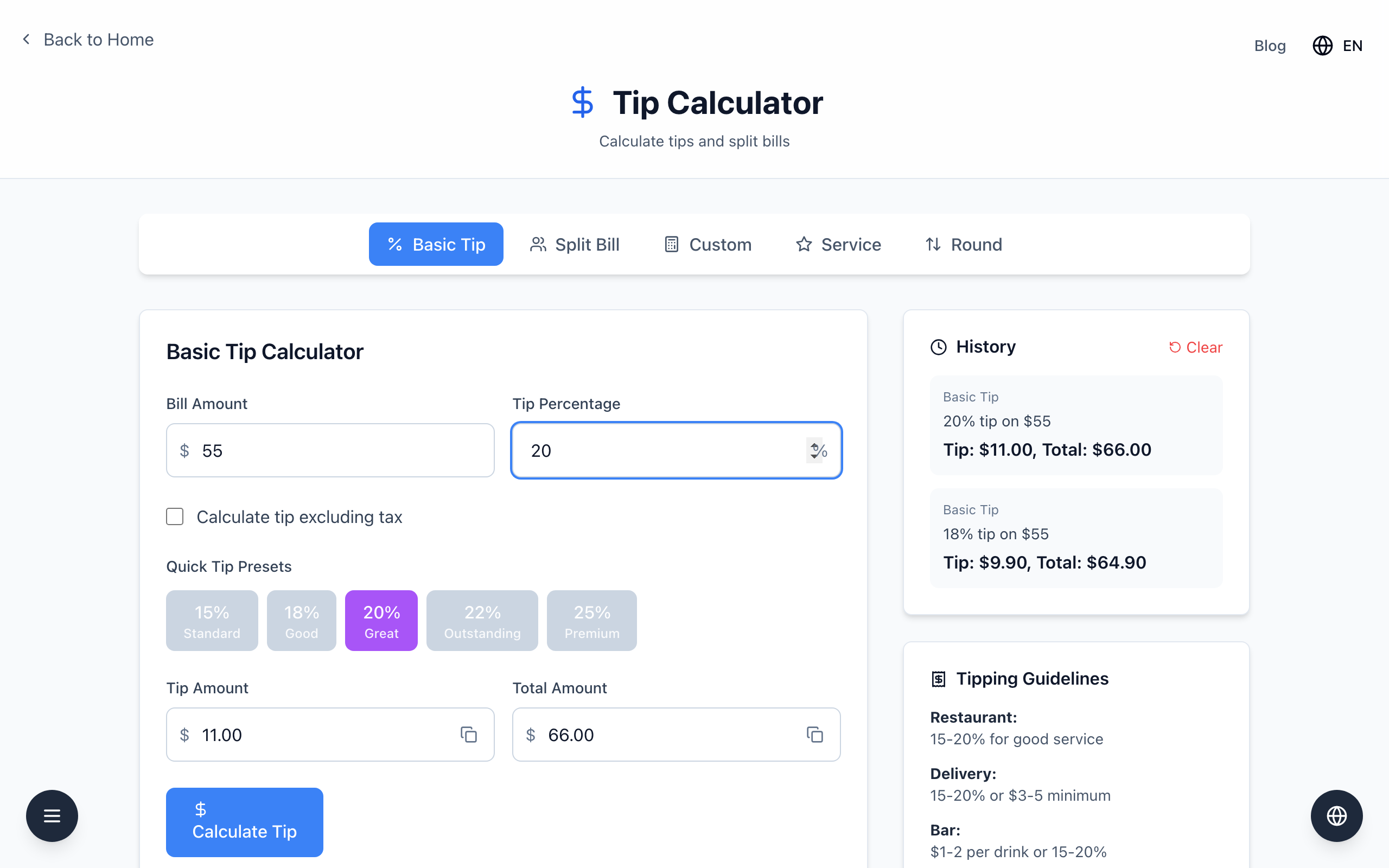
On a $55 bill that includes $5 tax, a 20% tip is $10 if you tip the $50 pre-tax subtotal and $11 if you tip the $55 total. In the Tip Calculator, the default tips the full amount you type; ticking Calculate tip excluding tax tips the bill minus the tax. Neither is "correct" by itself, so agree on the base before you calculate.
Compare both in the tool
Open the Tip Calculator. On the Basic Tip tab, type 55 in Bill Amount (the receipt total including tax) and 20 in Tip Percentage. Tip Amount shows 11.00 and Total Amount 66.00. This is the tip on the total.
Tick Calculate tip excluding tax and type 5 in Tax Amount. Tip Amount changes to 10.00 and Total Amount to 65.00. This is the tip on the $50 subtotal, added to the full $55 bill.
Look at History on the right. Each run is listed, and the pre-tax one is labelled "(excluding tax)", so you can show the group both numbers. A calculation can appear twice because the tool records both the automatic and the button calculation.
Tip base
Amount tipped
Tip at 20%
You pay
Pre-tax subtotal
$50
$10.00
$65.00
Tax-inclusive total
$55
$11.00
$66.00
What to check first
Which number your group or the local custom expects. The calculator cannot tell you; it only does the arithmetic for the base you choose.
Whether the receipt already adds a service charge or an automatic gratuity. If so, you may not need to add another tip.
If you split the bill, Split Bill divides the total from your last Basic Tip calculation evenly. It does not know who ordered what.
If it doesn't work
If Tip Amount stays empty, check that Bill Amount and Tip Percentage are above 0.
If the tip did not change after ticking the box, make sure Tax Amount has a number above 0.
Enter the tax amount shown on the receipt, not the tax rate.